How to report Mailchimp campaigns with GA4 traffic
Tag Mailchimp links for GA4, compare each campaign's clicks with the visits and key events it produced, and build one newsletter report with copy-ready prompts.

Mailchimp tells you what happened inside the email: how many people it reached, opened and clicked. GA4 tells you what those people did on your site after the click. To report both, tag every link so GA4 can name the campaign, then compare each campaign's unique clicks with the GA4 sessions, engaged sessions and key events that carry the same campaign name.
This guide shows how to tag the links, which Mailchimp and GA4 numbers you can put side by side, and how to build one newsletter report in Datapipe that refreshes on its own. It finishes with three prompts you can copy into Claude or ChatGPT to match every campaign to its website visits.
What you'll need before you start
You need a Mailchimp login that can authorize the account (or an API key from it), and a Google account with access to the GA4 property for the site the emails link to.
You also need a Datapipe account. The Free plan includes 3 data sources with a daily refresh, enough for one Mailchimp account and one GA4 property. Your copies of the reports save to Data Studio, so the same Google account works for that.
Check one thing in GA4 first: the actions you care about, such as a signup, a demo request or a purchase, should be marked as key events. Without them GA4 can tell you a newsletter brought visits, but not whether those visits did anything.
How Mailchimp and GA4 count a newsletter
The two tools count different moments, on different dates.
| Mailchimp | GA4 | |
|---|---|---|
| What it counts | Delivered emails, opens, clicks and unsubscribes for each campaign | Sessions, engaged sessions and key events on your site |
| Dated by | The campaign's send time | The day of each visit |
| How results add up | Running totals for each campaign that keep growing for days after the send | Activity inside the dates you pick |
| Who it can see | Everyone the email reached | Visitors who allowed analytics on your site |
| How it names the campaign | The campaign title | The utm_campaign value in the link, shown as Session campaign |
That last row is the join. If the link a subscriber clicks carries utm_campaign, GA4 files the visit under that name, and you can line it up with the Mailchimp campaign it came from. Without tags, newsletter visits land in GA4 as direct or referral traffic and the match is lost.
Which numbers belong together
Put a Mailchimp number next to a GA4 number only when both describe the same campaign. These pairs work.
| Pair | Tells you | Watch out for |
|---|---|---|
| Mailchimp unique clicks and GA4 sessions for that campaign | How many clickers reached the site and were counted | Sessions can be lower (consent, links to other domains) or higher (people come back) |
| GA4 engaged sessions divided by sessions for the campaign | Whether the landing page held people's attention | Compare campaigns that link to similar pages |
| GA4 key events for the campaign | Whether the visits did what the email asked | Only events marked as key events count |
| Mailchimp unsubscribes and GA4 engaged sessions, per campaign | Whether the content fit the audience | Read both per campaign, never as a sum across campaigns |
| Mailchimp store revenue and GA4 purchase revenue for the campaign | Two views of the money the email brought | Each tool credits sales its own way, so show both and never add them |
Which numbers don't
Some combinations look tidy and mislead every time.
| Tempting pair | Why it misleads | Use instead |
|---|---|---|
| GA4 sessions divided by Mailchimp opens | Opens include Apple Mail Privacy Protection and automated scanners, so the rate drifts for reasons unrelated to the email | GA4 sessions divided by Mailchimp unique clicks |
| Mailchimp clicks for a date range against GA4 sessions for the same range | Mailchimp totals belong to each campaign's send date; GA4 counts each visit on its own day | One row per campaign, with GA4 read for the 7 days after the send |
| Mailchimp revenue plus GA4 revenue | The same order can appear in both | Report them in separate columns |
| GA4's Email channel total against one campaign | The Email channel holds every email tool and every send, including receipts | Filter GA4 to the campaign's Session campaign value |
Here's the stance: stop reporting open rate to clients as the headline. Lead with unique clicks and the engaged sessions they produced. Those two numbers move only when people do something.
Step 1: Tag every link in the campaign
Mailchimp can add Google Analytics tags to every link for you. In the email builder, open Settings & Tracking, check Google Analytics link tracking and save. Mailchimp's guide to Google Analytics link tracking says the default campaign title combines the email's title with its date, and you can edit it. Keep it free of special characters.
Send yourself a test, click a link and read the address that opens. You should see utm_campaign with the title you expect, plus a source and a medium. GA4 puts a visit in its Email channel only when the source or medium is email (or a spelling like e-mail), so check the medium in particular.
If you'd rather set the tags yourself, turn link tracking off for that campaign and add this to the end of each link, changing the campaign and content values for each send:
?utm_source=mailchimp&utm_medium=email&utm_campaign=2026-11-03-newsletter-166&utm_content=hero-buttonUse one naming pattern for every campaign (date first, then a short name) so the GA4 list sorts in send order and nobody has to guess which campaign a row belongs to.
Step 2: Add Mailchimp to a Datapipe project
- In Datapipe, open Data sources, choose Add data source and pick the Mailchimp data source.
- Click Sign in and approve access in Mailchimp. If you can't sign in with that account, open Use an API key or token instead and paste a key from the account.
- You land back on the project's data sources with Mailchimp added.
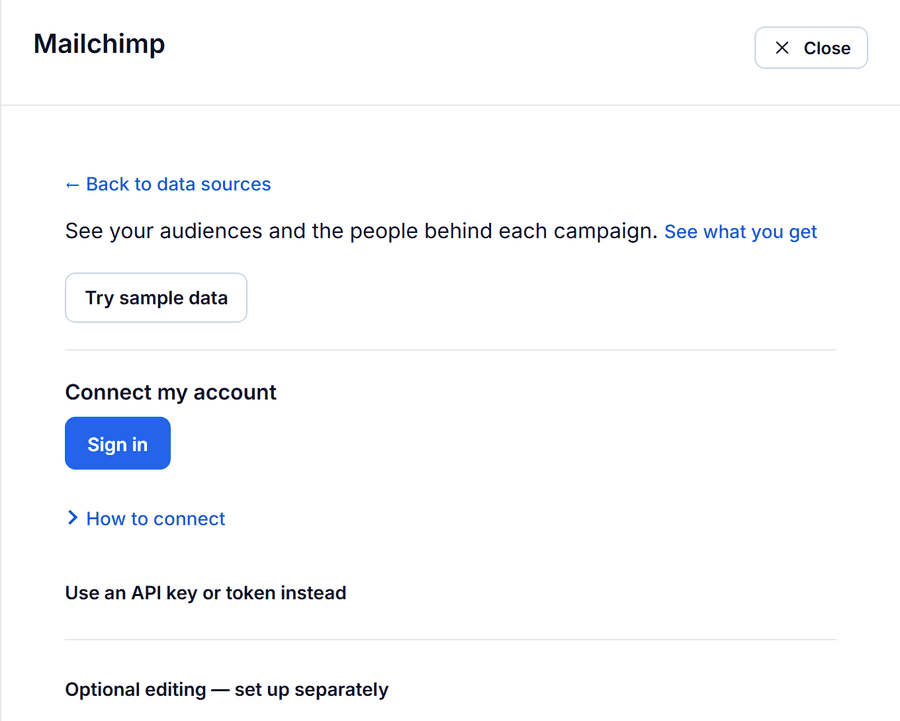
The Mailchimp user's access decides which audiences and campaigns Datapipe can read.
Step 3: Add Google Analytics to the same project
- Choose Add data source again and pick the Google Analytics data source.
- Click Sign in with Google with an account that can see the GA4 property, then choose the property.
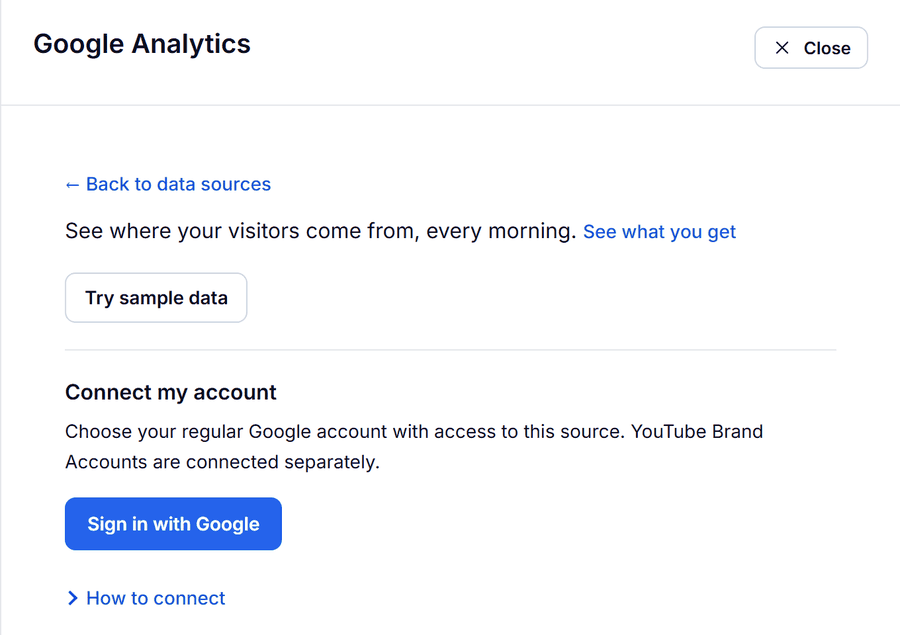
Adding both to one project lets one report link and one assistant question cover the newsletter and the site together.
Step 4: Copy the Mailchimp report template
- Open Reports, find Mailchimp Newsletter Report under Data Studio dashboards and click Use template.
- Choose the Mailchimp account, click Open my dashboard, then save your copy in Data Studio.
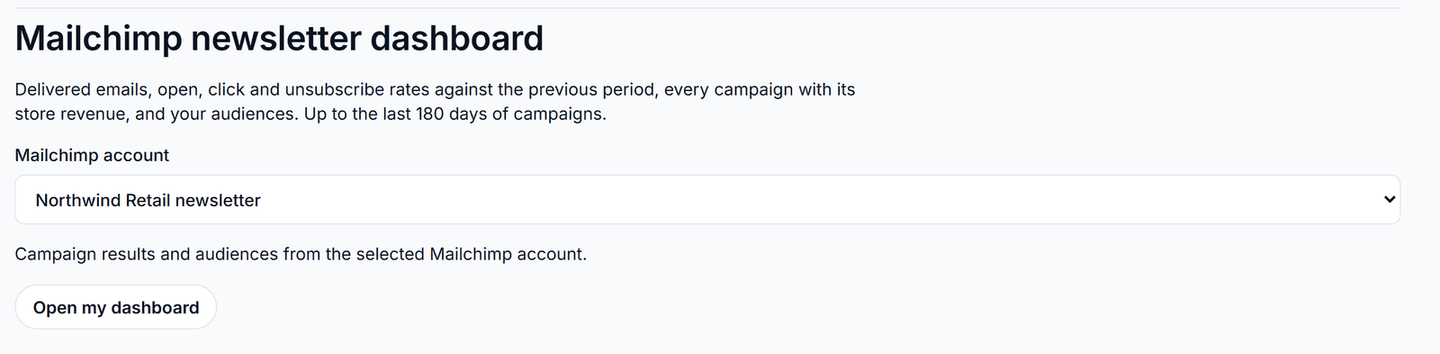
The Mailchimp report template has four pages. Overview compares delivered emails, open, click and unsubscribe rates with the previous period, with weekly trends. Campaigns, below, lists every campaign with its audience, opens, clicks, unsubscribes, spam complaints and store revenue. Audiences shows subscribed, unsubscribed and cleaned members for each audience as they are now. Start here explains how to read the rates.
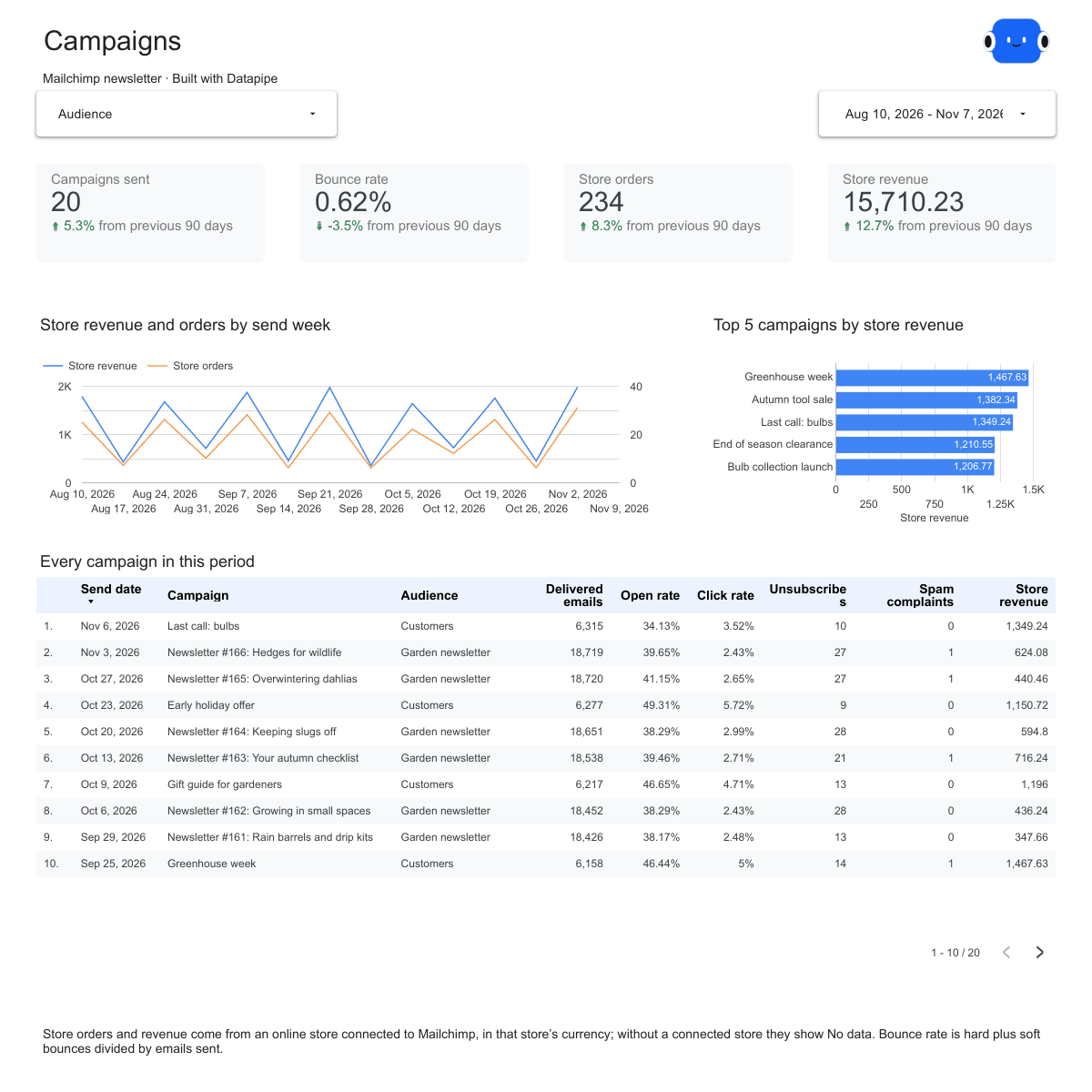
The template reads campaigns sent in the last 180 days, dated by send time in UTC, and opens on the last 90 days. It works out open rate as unique opens divided by delivered emails, and click rate as recipients who clicked divided by delivered emails. Store orders and revenue appear only when an online store, such as Shopify or WooCommerce, is connected to Mailchimp.
Step 5: Copy the GA4 report template and filter it to email
- In Reports, find GA4 Website Performance Report under Data Studio dashboards and click Use template.
- Choose the property, click Open my dashboard and save your copy.
- On the Acquisition page, set the Session source / medium filter to your newsletter's source and medium, for example
mailchimp / email.
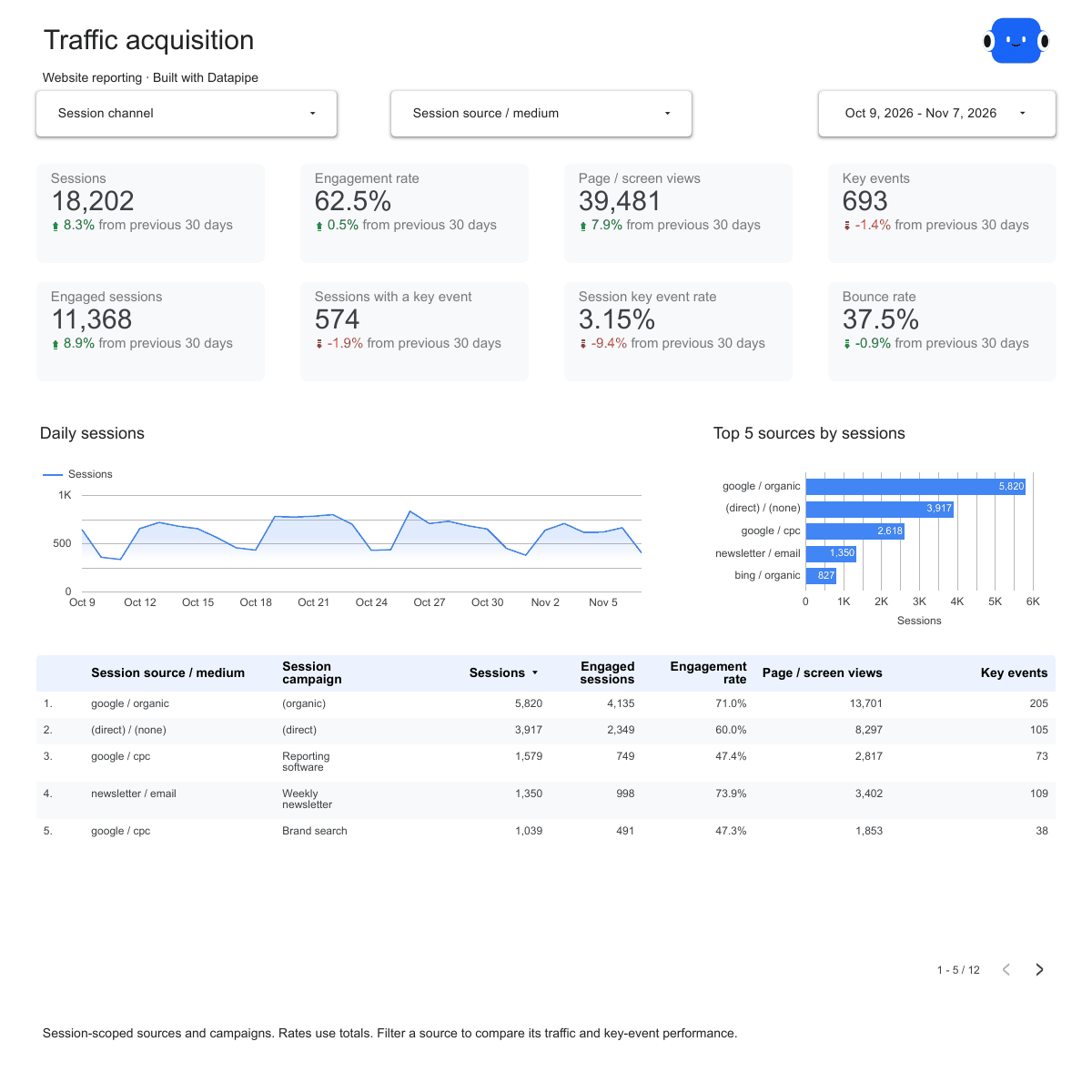
The GA4 report template then shows sessions, engagement rate and key events for newsletter traffic only, and the table lists each Session campaign with its sessions, engaged sessions and key events. That table is the GA4 half of your campaign comparison. The Landing pages page, filtered the same way, shows which pages the emails sent people to and which ones held them.
Step 6: Put both reports in one link
- Open the Mailchimp report's page in Datapipe.
- Use Add another report to add the GA4 report. It sits below the Mailchimp report and goes out in the same public link and email.
- In Schedule & send, set the refresh and add who gets the email.
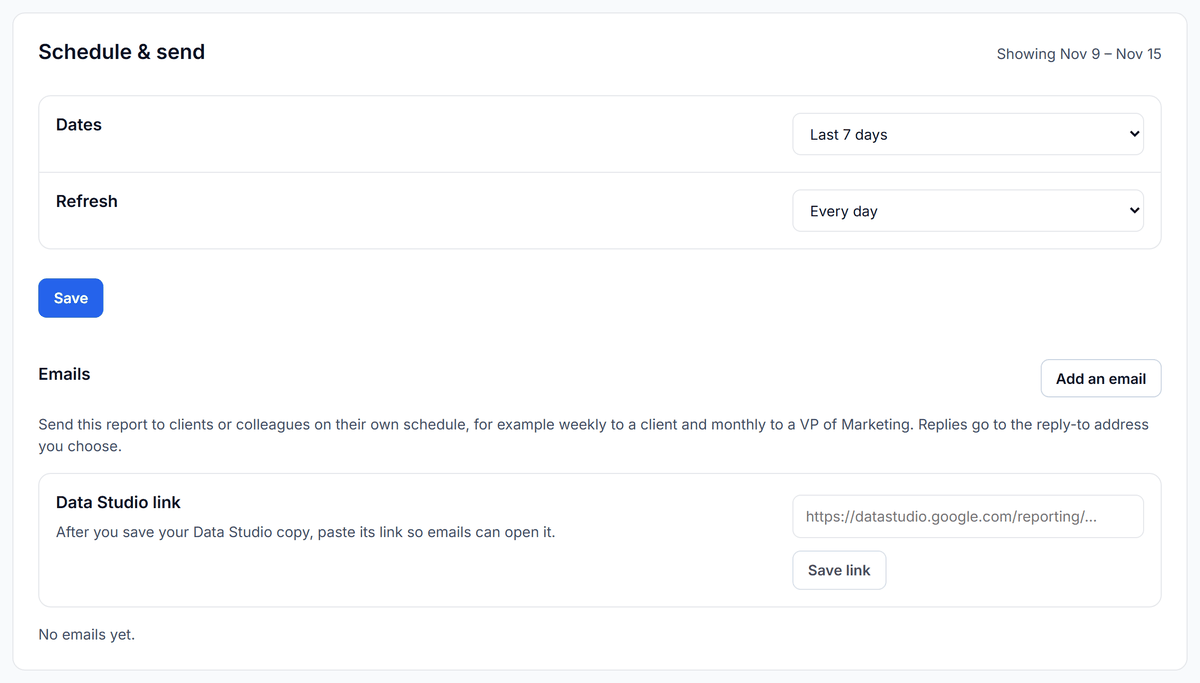
Free and Starter refresh daily, Pro hourly, and Agency every 15 minutes on up to 50 data sources, as listed on the Datapipe pricing page.
A worked example
For example, take two campaigns from one month.
| Campaign | Delivered | Click rate | Unique clicks | GA4 sessions (7 days) | Engaged sessions | Key events |
|---|---|---|---|---|---|---|
| Newsletter #166: Hedges for wildlife | 18,719 | 2.43% | 455 | 391 | 289 | 14 |
| Early holiday offer | 6,277 | 5.72% | 359 | 152 | 118 | 21 |
Unique clicks come from delivered emails times click rate. Now read each row.
- Newsletter #166 reached the site. 391 sessions from 455 clickers is 0.86 sessions per click. Some clickers declined analytics and some clicked twice in one visit, so a number a little under 1 is what tracking that works looks like. 74% of those sessions were engaged.
- The holiday offer lost most of its clicks. 152 sessions from 359 clickers is 0.42. People clicked, so the email did its job; the visits went missing on the way. Open the offer's links: a redirect that drops the tags, or a link to a shop on another domain, would explain it.
- The smaller send still won on outcomes. 21 key events against 14, from a third of the audience. If those key events are purchases, the offer list is worth more per send, and fixing its links comes first.
Ignore open rate here. Both campaigns could show a 40% open rate and the story wouldn't change.
Ask Claude or ChatGPT to match every campaign
The two templates give you each side. The campaign-by-campaign match is quicker with an assistant connected to your Datapipe project, because it can read both data sources and flag the GA4 campaign names that don't match any send.
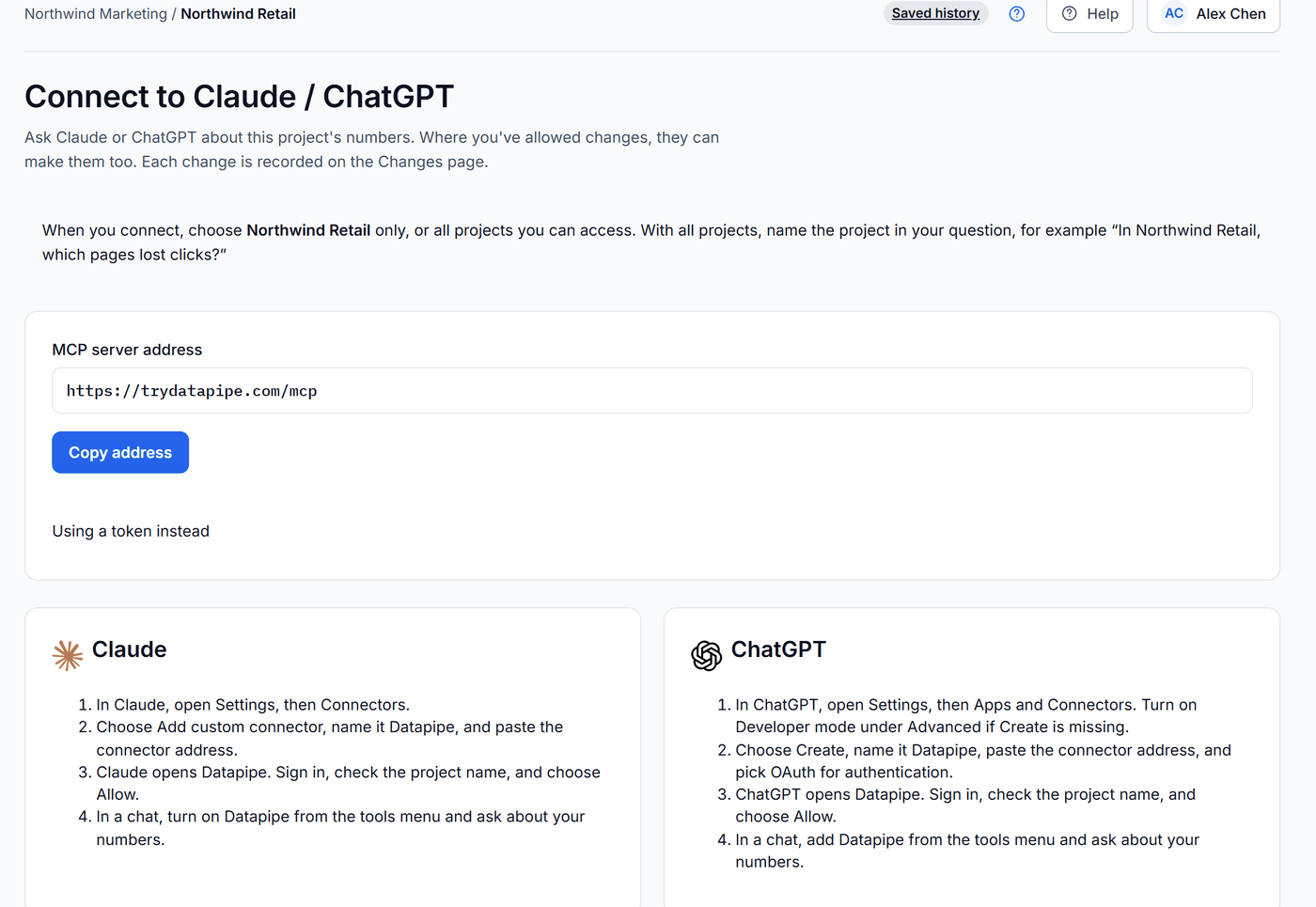
- In Datapipe, open Settings, then Claude / ChatGPT, and click Copy address.
- In Claude, open Customize, then Connectors, click + Add and choose Add custom connector, name it Datapipe and paste the address. In ChatGPT, open Settings, then Apps and Connectors, choose Create, name it Datapipe, paste the address and pick OAuth. No Create button? Turn on Developer mode under Advanced.
- Datapipe opens. Sign in, check the project name and choose Allow.
- Start a chat, turn on Datapipe from the tools menu and paste the prompts below in order. Swap in your project name and dates.
List the campaigns and their clicks.
In [project name], read Mailchimp campaigns sent from [start date] to [end date]: campaign_title, send_time, emails_sent, clicks.unique_clicks, clicks.click_rate, unsubscribed and ecommerce.total_revenue. List one row per campaign in send order. Don't change anything.
Match them to GA4 visits.
In [project name], read Google Analytics from [start date] to [end date plus 7 days]: sessionCampaignName, sessionSource, sessionMedium, sessions, engagedSessions and keyEvents, for sessions whose sessionMedium is email. Match each Mailchimp campaign from your last answer to its Session campaign, counting only the 7 days after its send. Show unique clicks, sessions, sessions per unique click, engagement rate and key events for each campaign. Then list any email Session campaign that matched no Mailchimp campaign, and any campaign with fewer than 0.5 sessions per unique click. Don't change anything.
Write the client note.
Using only the numbers from your last two answers, write a short newsletter note for the client. Lead with unique clicks, sessions and key events for each campaign, name the campaign that brought the most key events, and say which campaign's links need checking and why. Leave open rate out. Don't change anything.
If you want the newsletter view as a Data Studio dashboard you design yourself, the use case to build a newsletter-to-website dashboard walks through it. To see which email links get clicks but few purchases, follow the use case see what happens after the newsletter click.
Troubleshooting the Mailchimp and GA4 report
If GA4 shows no newsletter sessions at all, open a link from a test email and look at the address. No utm_campaign means link tracking is off for that campaign, or a redirect strips the tags before the page loads.
If newsletter visits appear under Referral or Unassigned, the medium isn't email. Fix the medium in Mailchimp's tracking settings or in your own tags, and keep it identical for every send.
If GA4 campaign names don't match the Mailchimp titles, remember that Mailchimp's default tag adds the send date to the title. Match on the title part, or set your own utm_campaign with one naming pattern.
If the newest campaigns change after each refresh, that's expected. Mailchimp keeps counting opens, clicks and orders for days after a send, and each refresh replaces every campaign with its latest totals. Report a campaign once it's a week old.
If open rates look too good to be true, they probably are. Apple Mail Privacy Protection and security scanners register opens without a person reading. Use clicks.
If store revenue shows No data, no online store is connected to that Mailchimp account. The rest of the report still works.
If an older campaign is missing, the Mailchimp template reads campaigns sent in the last 180 days.
Frequently asked questions
Does Mailchimp send campaign data to GA4?
Not directly. Mailchimp adds tags to the links in your email when Google Analytics link tracking is on. When a subscriber clicks, GA4 reads those tags from the address and files the visit under the campaign name. Mailchimp's own numbers, such as opens and delivered emails, stay in Mailchimp.
Why does GA4 show fewer sessions than Mailchimp clicks?
Some subscribers decline analytics on your site, some click twice within one visit, and some links point to pages GA4 doesn't track, such as another domain or a file. A redirect that drops the tags also loses the visit's campaign name. A ratio a little under one session per unique click is normal; a much lower one means a link needs checking.
Why is my Mailchimp open rate so high?
Apple Mail Privacy Protection and email security scanners load emails automatically, which Mailchimp records as opens. Open rate rises without anyone reading more. Unique clicks and the GA4 sessions they produce are the steadier measures.
Which UTM parameters should I use for Mailchimp?
Use utm_source=mailchimp, utm_medium=email and a utm_campaign value with one naming pattern, such as the send date followed by a short name. GA4 puts a visit in its Email channel when the source or medium is email. Add utm_content when you want to compare links within one email.
Can I see Mailchimp results by day?
No. Mailchimp reports running totals for each campaign, dated by its send time, and keeps updating them for days after the send. Compare campaigns by send date, and read GA4 for a fixed window after each send, such as 7 days.
How much does it cost to report Mailchimp and GA4 together in Datapipe?
The Free plan includes 3 data sources with a daily refresh, enough for one Mailchimp account and one GA4 property. The Mailchimp and GA4 report templates are free to copy. Paid plans add more data sources and faster refreshes.
Put your marketing numbers on autopilot
Datapipe connects your data sources and keeps your reports refreshed on a schedule.
Start free