How to reconcile GA4 purchases with Shopify orders, step by step
Connect Shopify, GA4 and Tag Manager, match every order to its GA4 transaction ID with three copy-ready prompts, and fix what the match finds.

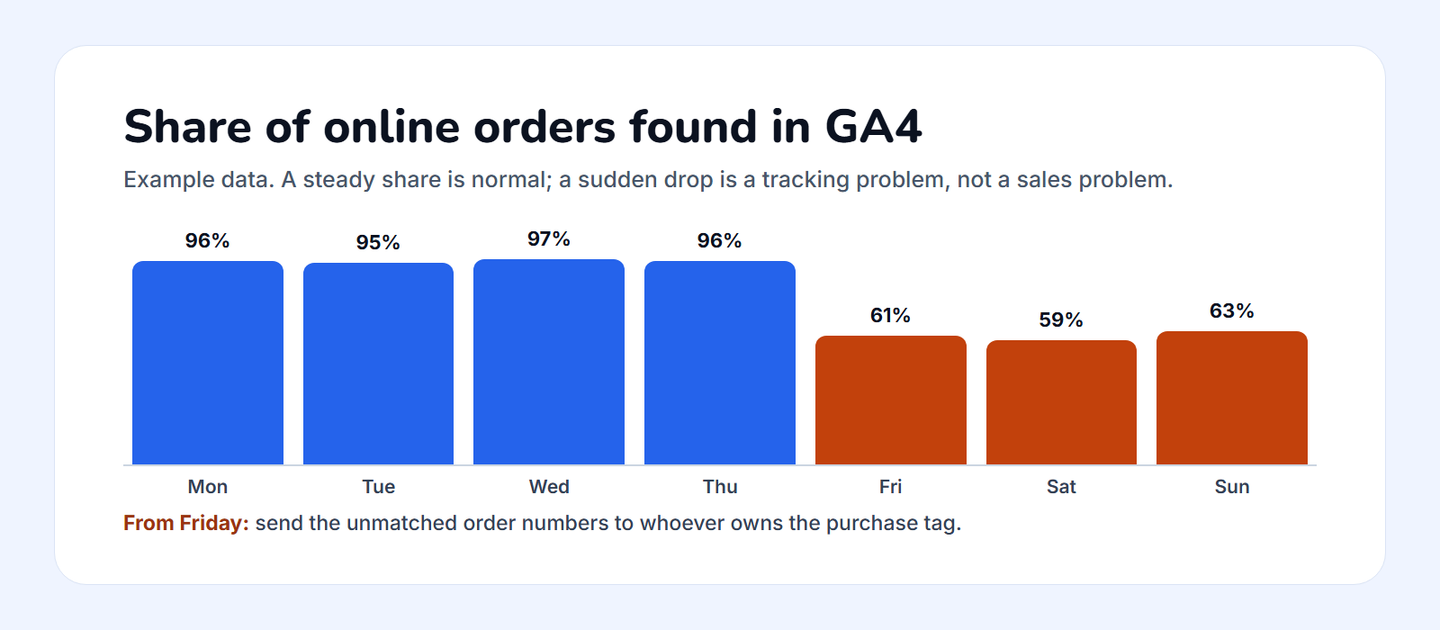
Shopify is the record of what your store sold. GA4 is a record of the purchases your tracking managed to send. To reconcile them, match each Shopify order number to a GA4 transaction ID, day by day, and watch one number: the share of online orders GA4 recorded. A steady share is normal. A sudden drop means your tracking broke, not your sales.
This guide walks you through the whole check in Datapipe: connecting the store, GA4 and Tag Manager, copying the two report templates, running the order match with ChatGPT or Claude using three prompts you can paste, and fixing what the match turns up.
What you'll need
You need four things before you start.
Access to install an app on the Shopify store, or the store owner on hand to approve it. You also need the store's original myshopify.com address, which you'll find in Shopify admin under Settings, then Domains.
At least Viewer access to the GA4 property for the store's website. If you don't have it, an administrator can add your Google email in Google Analytics under Admin, then Property access management.
Read access to the Google Tag Manager container that runs the store's tags. Read is enough. Datapipe never changes the container.
A Datapipe account. The Free plan includes 3 data sources, which covers Shopify, GA4 and Tag Manager for one store. To run the order match, connect the project to ChatGPT or Claude.
Why GA4 and Shopify never match
GA4 almost always records fewer purchases than Shopify. Seven causes explain the gap, and only one of them is a problem you need to fix.
| Cause | What happens | Is it a fault? |
|---|---|---|
| Consent and blocked scripts | Shoppers who decline analytics cookies, or block the tag, buy without a GA4 purchase | No: expect a steady shortfall |
| Orders outside the online checkout | Admin-created, point-of-sale and subscription orders never send a browser purchase event | No: set them aside |
| Time zones | Shopify order dates in a Datapipe report are UTC; GA4 uses the property's time zone | No: convert before counting |
| Refunds and edits | Shopify's current total drops when you refund; GA4 keeps the original revenue unless refund events are sent | No: use Shopify for net sales |
| Test and repeated purchases | Test checkouts and reloaded confirmation pages create GA4 purchases with no real order, or the same ID twice | Sometimes: exclude test IDs, count each ID once |
| Processing delay | GA4 can still change for 24 to 48 hours | No: compare days that ended two days ago |
| A broken purchase tag | A tag change, a paused tag or a checkout update stops purchases reaching GA4 | Yes: this is what the match finds |
Every cause except the last produces a gap that stays roughly the same size from day to day. A broken tag makes the gap jump on the day it broke. Matching by order number is how you see that jump and prove it.
Step 1: Connect Shopify
- In Shopify admin, open Settings, then Domains, and note the store's myshopify.com address. Use that, not the custom storefront domain.
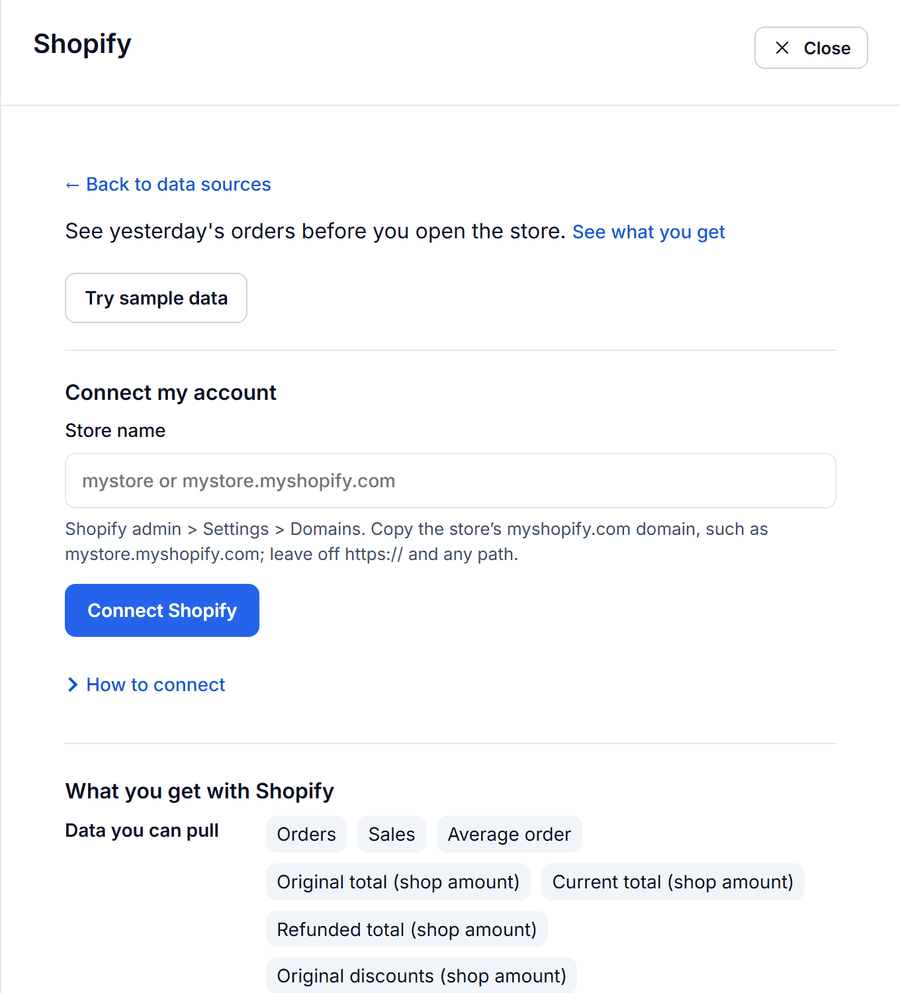
- In Datapipe, open Data sources, choose Add data source and pick the Shopify data source.
- Enter mystore or mystore.myshopify.com, click Connect Shopify, sign in to the store, review the requested access and approve the installation. You land back on the project's data sources.
If Shopify won't let you install, ask the store owner for app-installation permission, or ask them to connect the store themselves. Datapipe reads orders, products and stock, and by default it can read the last 60 days of orders.
Step 2: Connect GA4
- In Data sources, add the Google Analytics 4 data source and click Sign in with Google with the account that can view the property. Allow Analytics reporting access.
- In Find a source account, search by property name or ID, choose the store's GA4 property and click Add data source.
If the property isn't listed, your Google account lacks access. Ask an administrator to add you in Google Analytics under Admin, then Property access management, with at least Viewer access. Then come back and click Refresh accounts.
Step 3: Connect Tag Manager, read-only
- In Data sources, add the Google Tag Manager data source and click Sign in to Google Tag Manager with an account that has access to the container.
- Allow read-only access. Your other Google data sources keep their own sign-ins.
- Choose the Tag Manager account, then the container that runs the store's tags. Only that container is added to the project.
Tag Manager shows the container as it is now: the live version, its tags and any unpublished changes. That's what tells you whether the purchase tag is live, paused or about to change.
Step 4: Copy the Shopify report template
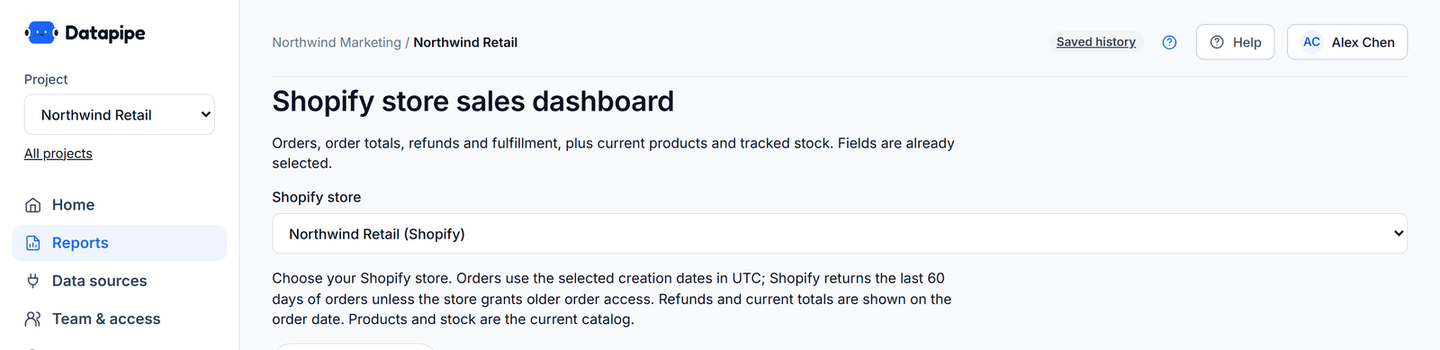
Open Reports in Datapipe, choose the Shopify dashboard and save your Data Studio copy. The Shopify sales and revenue report template gives you three working pages.
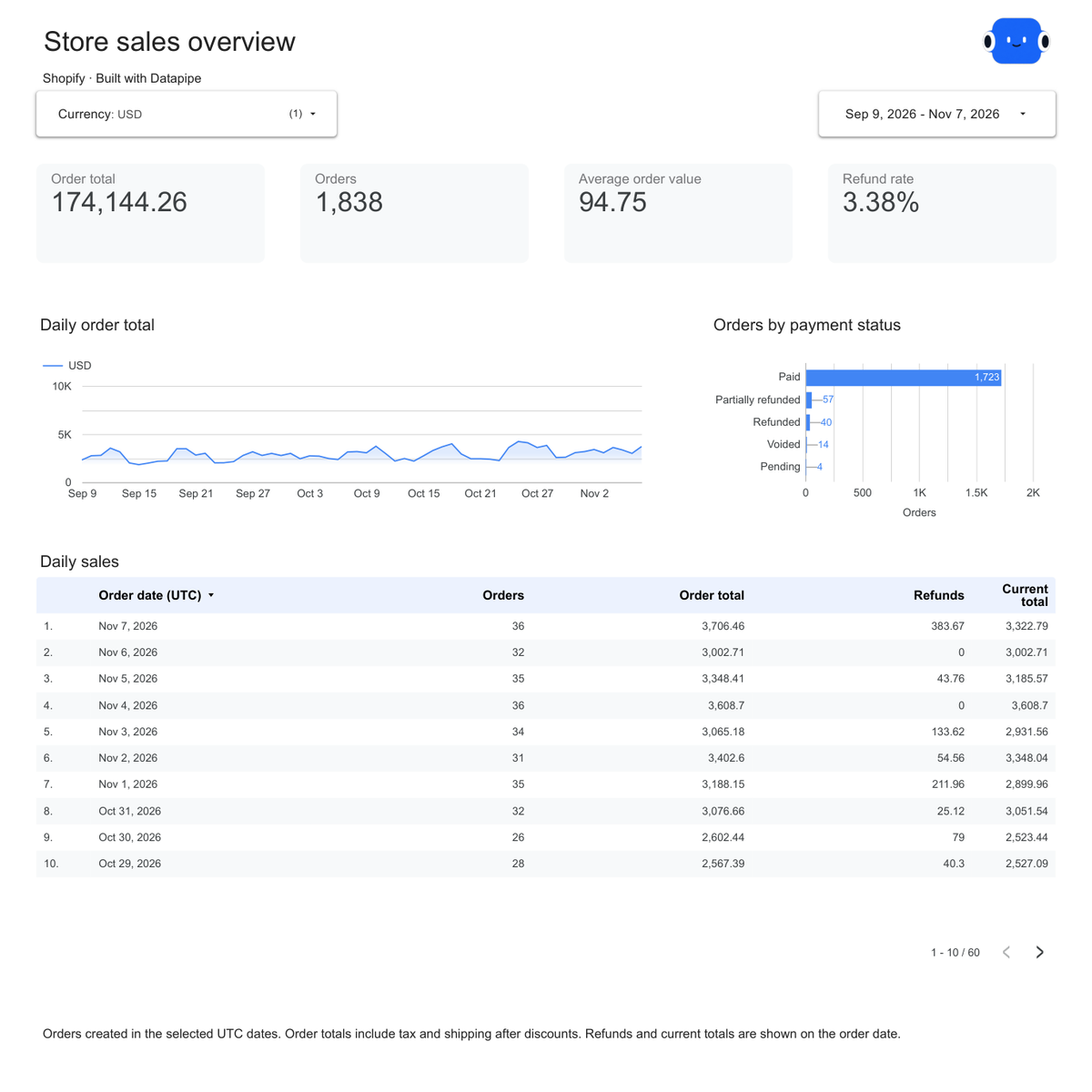
The Overview page shows order total, orders, average order value and refund rate, with sales by day. Order total is the order price including tax and shipping, after discounts. Average order value and refund rate use totals for the dates you choose, not an average of daily ratios.
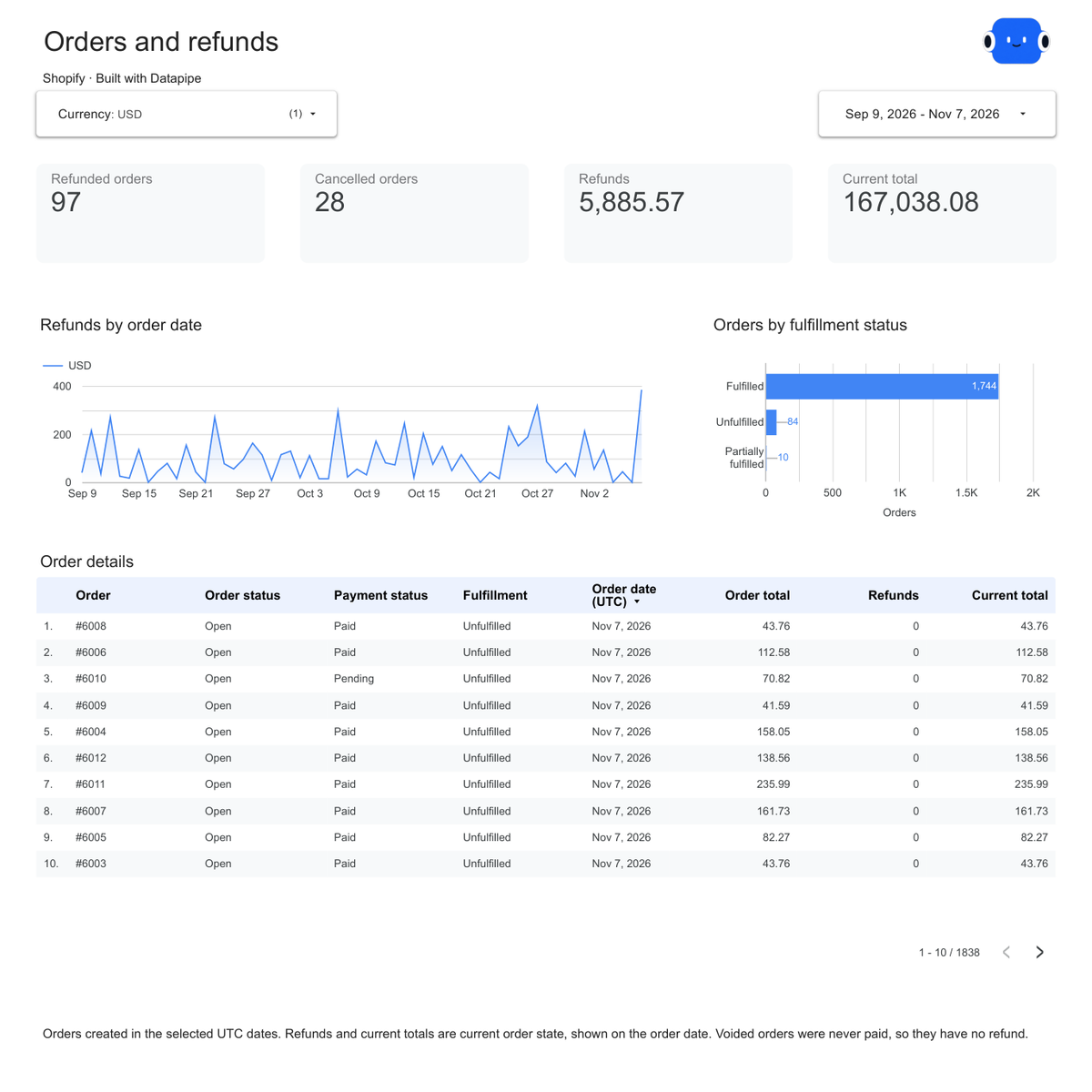
The Orders and refunds page lists every order with its status, payment status, fulfillment, order date in UTC, order total, refunds and current total. This is where you look up an unmatched order number from the match in Step 6. Refunds and current totals show on the date the order was placed, so last month's numbers change when you refund an old order.
Step 5: Copy the GA4 report template
Open Reports, choose the GA4 dashboard and save your copy of the GA4 traffic acquisition report template.
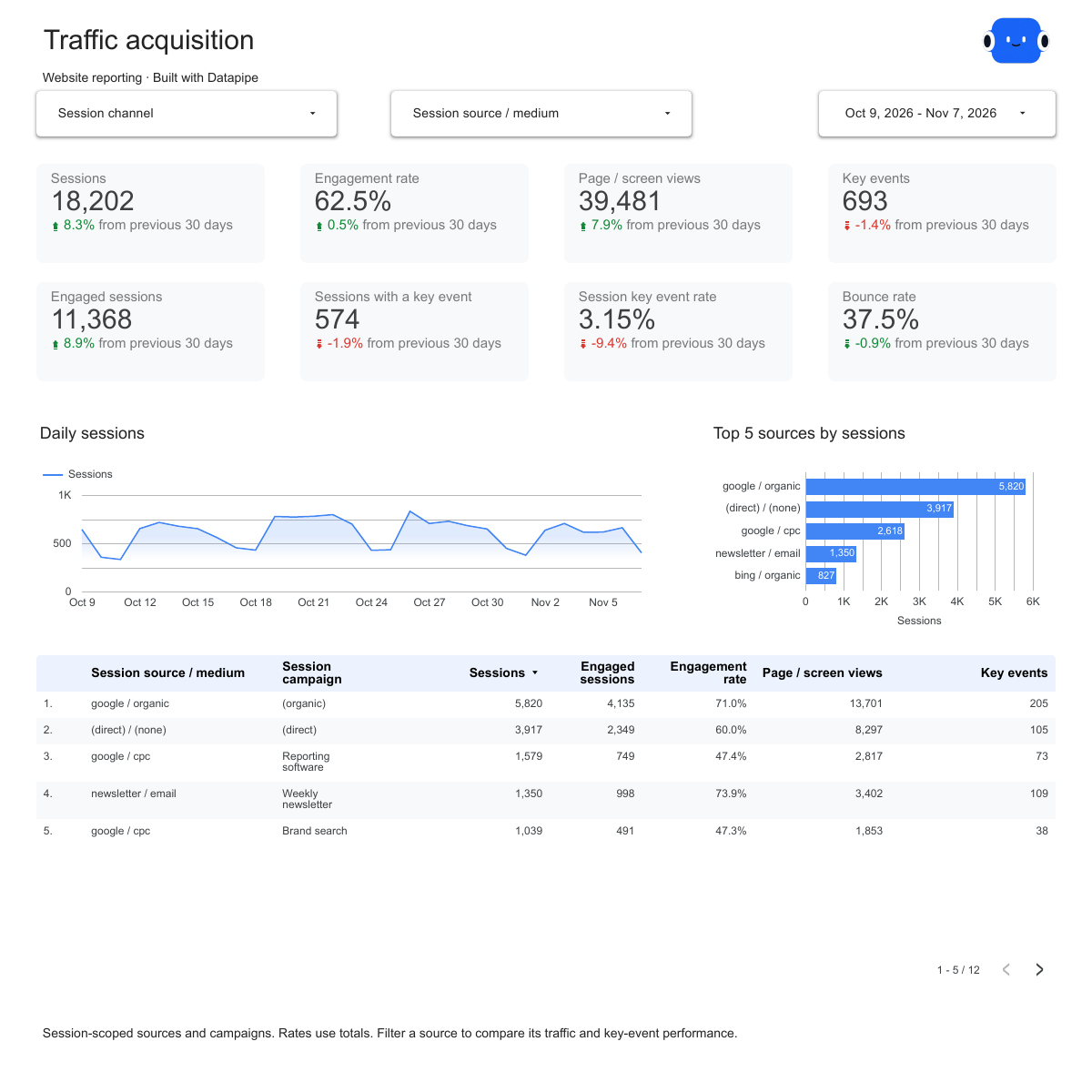
The Traffic acquisition page above breaks sessions, engagement and key events down by session source and medium. Use it for the question Shopify can't answer: where the buyers came from. Keep Shopify as the count of sales and GA4 as the channel mix.
Step 6: Run the order match with your assistant
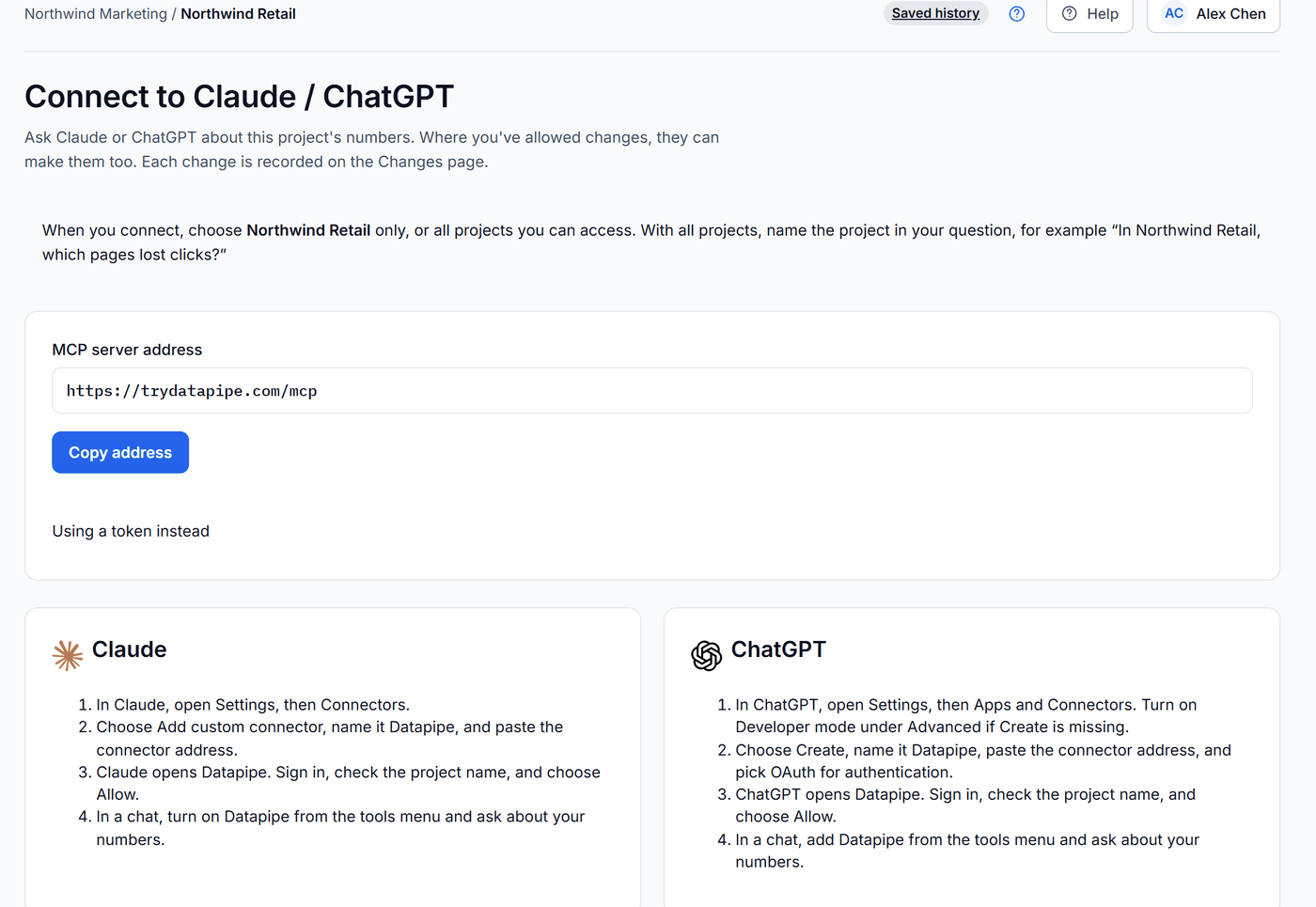
The match itself is a job for an assistant connected to your Datapipe project, because it lines up hundreds of order numbers and transaction IDs and keeps every unmatched row visible. Connect the project from Settings, then Claude / ChatGPT, and paste these three prompts in order. They come from the use case to reconcile GA4 purchases with Shopify orders. The same connection answers everyday traffic questions too, as the pages on Google Analytics in ChatGPT and Google Analytics in Claude show.
Prompt 1: read both sources for the same days.
Use only this Datapipe project's authorized data. Discover the connected accounts, datasets and compatible fields first. Confirm dates, timezones, currencies and data coverage. Keep missing or unmatched rows visible; never substitute sample data. Compare the sources explicitly and explain every match. Do not change source records or send messages. From the connected GA4 property, tell me the property time zone, then read date and transactionId with ecommercePurchases for the complete days I choose, ending at least two days ago. Report how many rows came back; if the result may be cut off, split the date range. Then read Shopify Orders (GraphQL): orders_graphql.name, legacyResourceId, createdAt, cancelledAt and displayFinancialStatus for one extra UTC day before and after my range. Convert createdAt to the GA4 property time zone and keep only orders inside the chosen local days. Show orders and GA4 transaction rows per day without matching them yet. Do not compare revenue until currency, tax and shipping definitions are confirmed.
Prompt 2: match transaction IDs to order numbers.
Show five GA4 transactionId values beside Shopify order names and legacy IDs from the same day, and ask me to confirm which identifier our purchase event sends. Normalize only that format, for example by removing a leading "#". Match each order to at most one transaction ID. Return per day: Shopify orders, orders found in GA4 and the percentage found. Keep separate lists for orders with no GA4 purchase, GA4 IDs with no Shopify order, "(not set)" or empty IDs, and IDs with ecommercePurchases above 1. Keep cancelled orders in the count, because their checkout still happened. Do not treat a missing GA4 row as a failed sale.
Prompt 3: add Tag Manager and draft the brief for the tag owner.
Read the connected Tag Manager container: the container overview (live version, paused tags, unpublished changes), live tags (name, type, paused, firing triggers, consent settings) and unpublished workspace changes. Identify the tags that appear to send the purchase event and say whether each is live, paused, scheduled or affected by an unpublished change. Tag Manager does not return publish dates or trigger conditions, so list what the tag owner must check in Tag Manager. If consent requirements could explain part of the gap, say so; do not suggest removing them. Draft a brief with the days where the found-in-GA4 share broke from its baseline, the unmatched order numbers, store-team confirmations still needed for test, admin-created, point-of-sale and subscription orders, and a checkout test plan. Keep observations separate from hypotheses. Do not change tags, publish versions, edit orders or send messages.
Prompt 2 stops to ask which identifier your purchase tag sends as transaction_id, the field Google's guide to measuring ecommerce in GA4 uses to identify each purchase. Answer it by looking at the five rows it shows: if GA4 says 1042 and Shopify says #1042, the tag sends the order name without the "#".
Step 7: Read the result
The result to look at first is the share of orders found in GA4, per day. Compare each day with the days before it, not with 100%. No store gets 100%.
For example, the use case's sample store has 96 orders on November 2 to 4, and 94 of them appear in GA4: 98%. On November 5 to 8 it has 128 orders and only 78 appear: 61%. Sales held steady. Tracking didn't. Tag Manager shows the live purchase tag is still unpaused, and a workspace holds an unpublished update to it, so the brief goes to the person who owns that tag.
Two smaller lists matter too. In that example, three GA4 transaction IDs start with "TEST-" and match no order: test checkouts to leave out. And two orders from before the break have no GA4 purchase; the store team confirms they were created in Shopify admin, so they never passed through the checkout.
Step 8: Fix what you find
Each pattern in the match points to a specific fix. Work through them in this order.
If almost no orders match on any day, the ID format is wrong, not the tracking. Re-run Prompt 2, look at the five sample rows, and tell the assistant which format the tag sends: the order name with "#", without it, or the numeric order ID.
If the share drops sharply from one date, something changed on that date. Use the Tag Manager read to check whether the purchase tag is paused, whether the live version changed, or whether an unpublished change is waiting. Tag Manager doesn't report when a version was published, so the tag owner confirms the date in Tag Manager's version history and tests a checkout in Preview mode.
If GA4 has IDs that match no order, look for test checkouts (IDs starting with TEST or similar) and leave them out of the match.
If some orders never appear in GA4, on any day, ask the store team whether they were created in Shopify admin, at a point of sale or by a subscription app. Those orders don't send a browser purchase event. Datapipe's Shopify order report doesn't include the sales channel or the test-order flag, so this confirmation needs a person.
If one transaction ID shows more than one purchase, the confirmation page fired the purchase event more than once, for example when the shopper reloaded it. Count the ID once, and give the order numbers to the tag owner.
If transaction IDs come through as "(not set)" or empty, the purchase tag fires but doesn't pass the order identifier. That's a tag configuration fix for the tag owner.
If the gap is steady from day to day, it's most likely consent and blocked scripts. That's normal. Leave it. Don't remove consent requirements to close it.
If older orders are missing, Shopify shares the last 60 days of orders unless it approves access to older orders for the app. Keep the match inside that window.
Once the tag owner publishes a fix, wait until GA4 has processed at least three complete days, then run the same three prompts again. Compare the share with your baseline from before the break. GA4 won't add back the purchases it missed, so annotate the affected dates and use Shopify's orders for those days in every report.
Which number should the client see?
Use Shopify for orders and revenue. Use GA4 for where shoppers came from. Label every number with the tool that produced it.
Here's the stance worth holding: never put GA4 purchase revenue on a cover page as "sales". It will almost always be lower than the store's own figure, and the first time a client checks it against Shopify, they'll stop trusting the rest of the report. Show Shopify's total, then GA4's channel mix as a share of it. And run the order match every week. A purchase tag usually breaks quietly, during a theme update or a checkout change, and nobody notices until a campaign gets cut for sales it actually made.
If Meta Ads drives some of the store's sales, the use case to compare Facebook Ads, GA4 and Shopify performance applies the same logic to Meta's attributed purchases. Refreshes run daily on Free and Starter, hourly on Pro and every 15 minutes on up to 50 data sources on Agency, as listed on the Datapipe pricing page.
Frequently asked questions
Why doesn't GA4 revenue match Shopify?
GA4 only records purchases its tag sends from the shopper's browser. It misses shoppers who decline analytics cookies or block the tag, and orders created in Shopify admin, at a point of sale or by a subscription app. Shopify also subtracts refunds from an order's current total, while GA4 keeps the original revenue unless refund events are sent. Expect GA4 to be lower, and use Shopify for sales.
How much lower than Shopify should GA4 purchases be?
There's no universal number. It depends on the store's consent banner, its customers' browsers and how many orders come from outside the online checkout. What matters is whether the share of orders found in GA4 stays steady from day to day. A sudden drop means the tracking changed.
Which Shopify ID does GA4 use as the transaction ID?
Whichever one your purchase tag sends: the order name with the "#" (such as #1042), the same name without it, or Shopify's numeric order ID. Put a few GA4 transaction IDs next to the same day's Shopify orders and you'll see which format it is.
How do I find orders that GA4 didn't record?
Match every Shopify order number to a GA4 transaction ID for the same local days. In Datapipe, connect Shopify and GA4 to one project, connect an assistant, and paste the three prompts from the reconcile use case. It returns the share found per day and separate lists of unmatched orders, unmatched GA4 IDs, empty IDs and repeated IDs.
Will GA4 recover purchases after I fix the tag?
No. GA4 doesn't add back purchases it never received. Annotate the affected dates and use Shopify's orders for those days in every report. After the fix, wait for at least three complete days of processed GA4 data before checking the share again.
Can I check orders older than 60 days?
Shopify normally shares the last 60 days of orders with apps. Older orders need Shopify to approve access to all orders for the app, so keep the match inside the last 60 days unless that access is in place.
Put your marketing numbers on autopilot
Datapipe connects your data sources and keeps your reports refreshed on a schedule.
Start free