GA4 vs Search Console: build one SEO report and fix what it finds
Put Search Console and GA4 in one report step by step, then use it to find pages losing traffic, pages close to page one, and pages where tracking broke.

Search Console counts clicks on Google's results. GA4 counts the visits it managed to record on your site. They will never match, and you don't need them to. Put both in one report, join them on the landing page, filter GA4 to Google organic, and you can use the pair to find the pages losing traffic, the pages one push away from page one, and the pages where tracking quietly broke.
This guide builds that report in Datapipe step by step, then uses it to fix three real problems. Each step shows the screen you'll use.
What each tool answers
Search Console tells you about demand and visibility on Google. GA4 tells you what visitors did after they arrived. A good SEO report uses each for its own question.
| Question | Use | Metric |
|---|---|---|
| How often did Google show our pages? | Search Console | Impressions |
| How many people clicked through from Google? | Search Console | Clicks and CTR |
| Where do we rank, on average? | Search Console | Average position, weighted by impressions |
| What did those visitors do on the site? | GA4, filtered to google / organic | Engaged sessions and key events by landing page |
| Which pages bring leads or sales from search? | Both, joined on the landing page | Search Console clicks next to GA4 key events |
What you'll need
A Google account that can view the client's verified Search Console property and their GA4 property. Viewer access is enough for GA4; for Search Console, the property's owner adds you under Settings, Users and permissions.
A Datapipe account. The Search Console property and the Analytics property are two data sources, and the Free plan includes 3. Signing in with Google doesn't use a data source on its own.
Step 1: Add Search Console and GA4 to one project
Create a project for the client, then add both Google accounts to it. One project per website keeps every client's data apart.
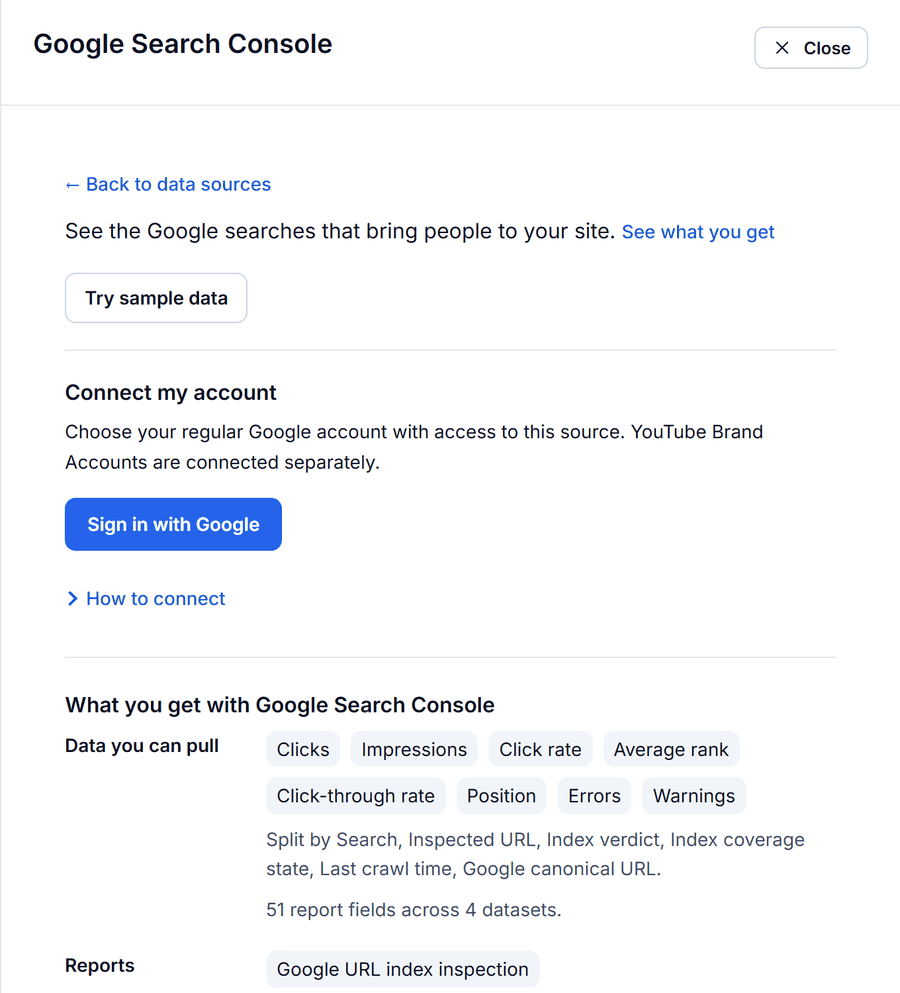
- Open Data sources and add the Google Search Console data source. Click Sign in with Google and pick the Google account that can view the verified property. Allow reporting access.
- Under Find a source account, search for the site's domain, choose the property and add it. A Domain property shows up as sc-domain:example.com. There's no property ID or verification code to copy.
- Add the Google Analytics 4 data source next. Use the same Google sign-in if it can view the property, or click Use a different Google account.
- Search by the property's name or ID, choose the GA4 property for the same website and add it.
If a property doesn't appear, the Google account you signed in with can't see it. The fixes are in the troubleshooting section below.
Step 2: Copy the Search Console report template
Open Reports, choose the Search Console dashboard and save your Data Studio copy. The Google Search Console report template fills with your property's data and refreshes on your plan's schedule.
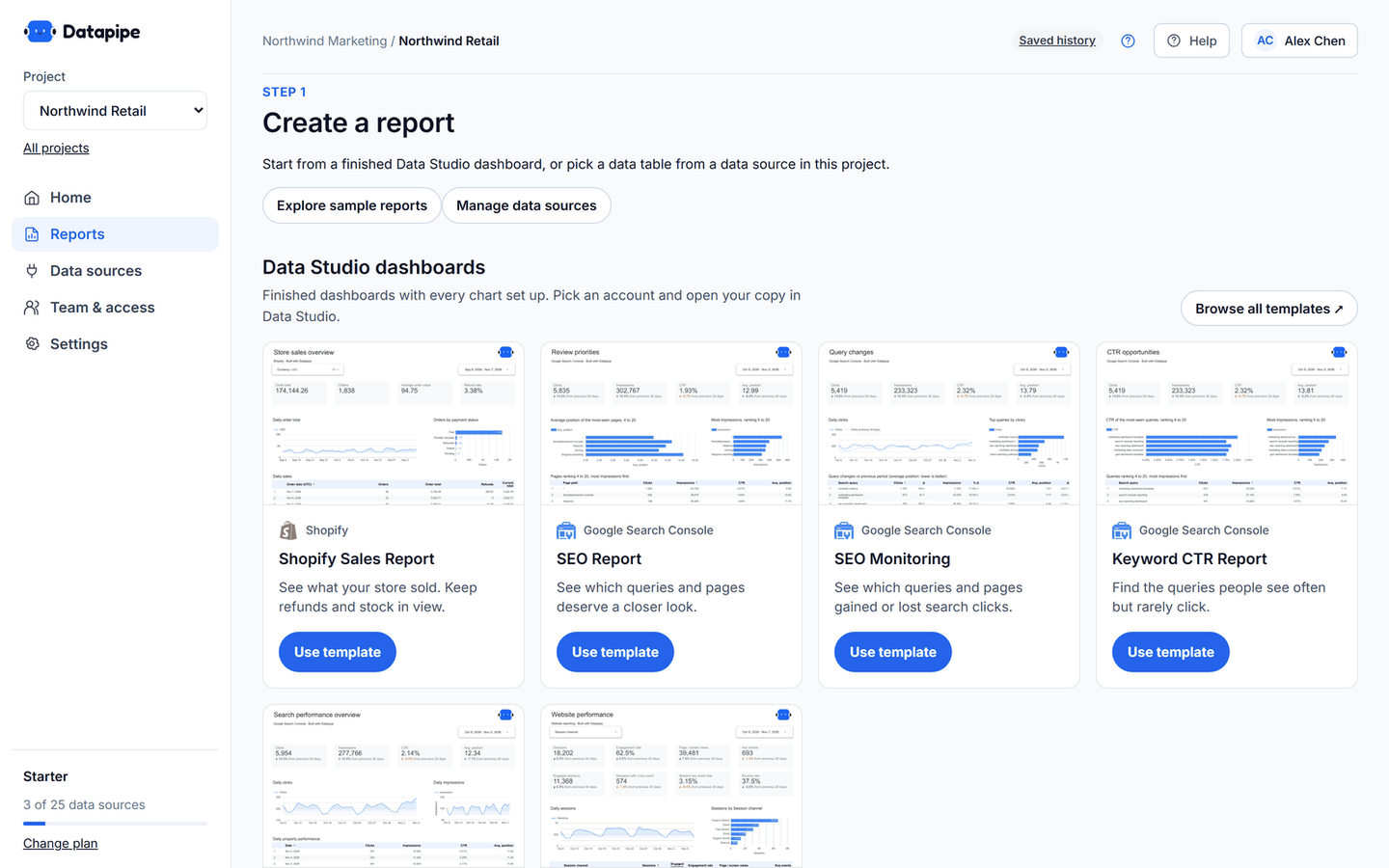
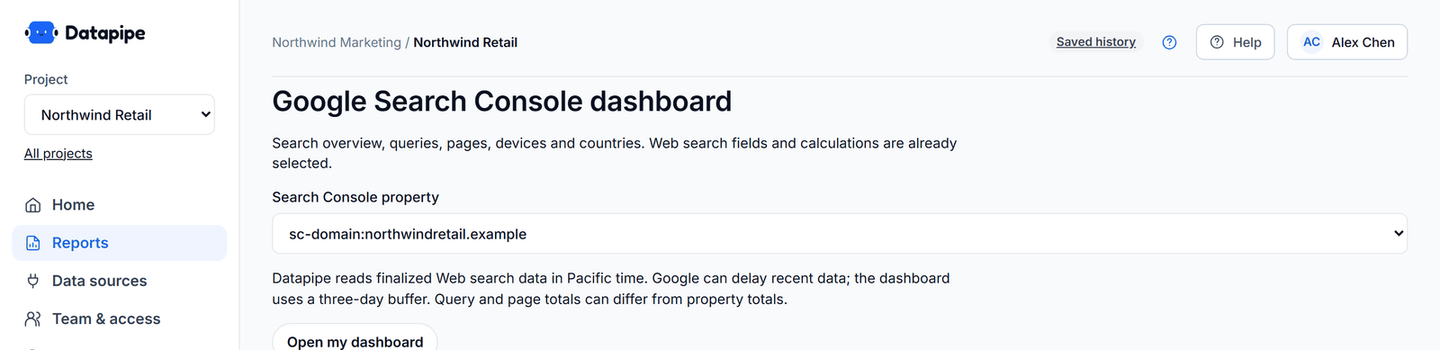
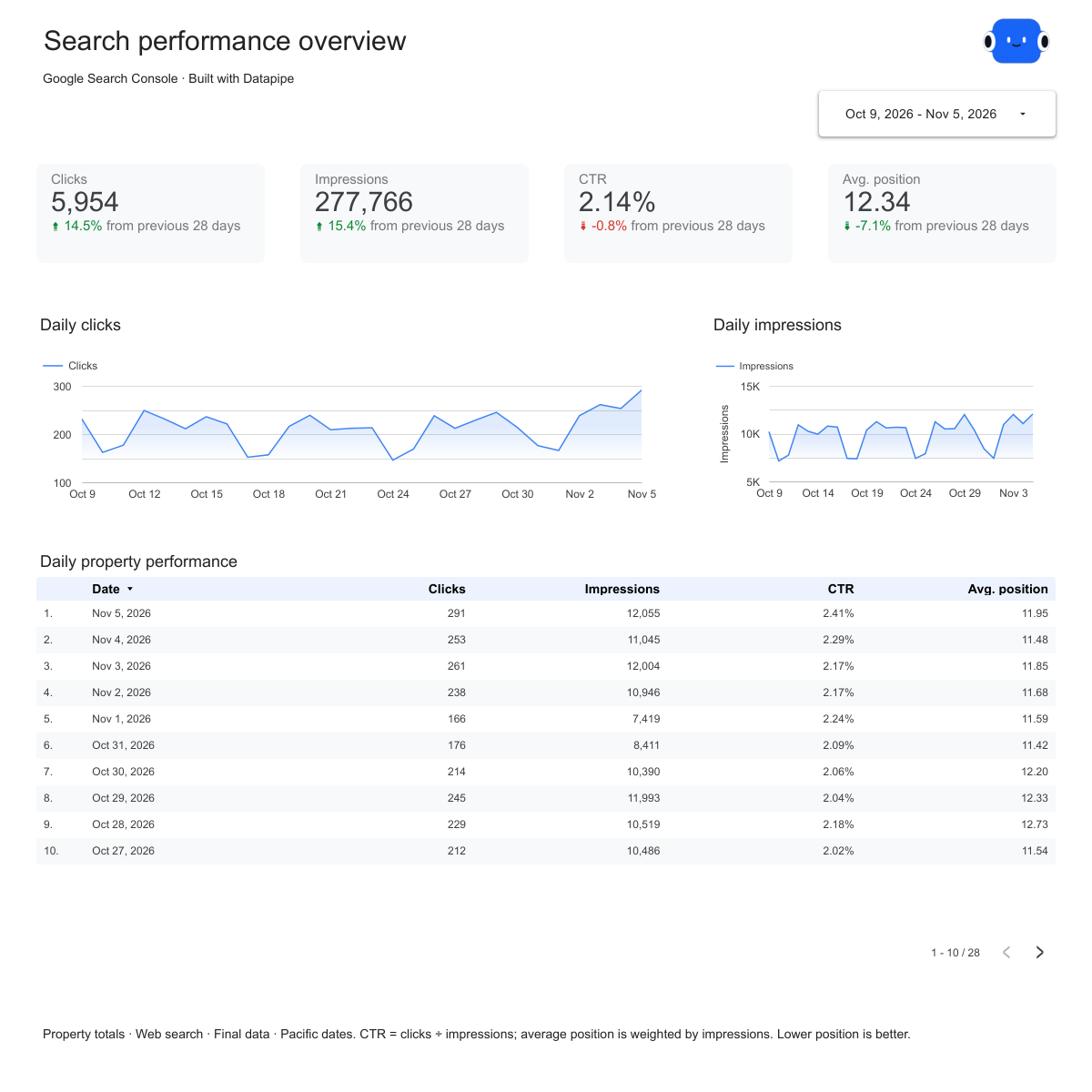
The Overview page, above, answers "are we growing on Google?" with clicks, impressions, CTR and average position against the previous 28 days. It defaults to the 28 days ending three days before today, because Google's final data arrives late. The Queries, Pages, Devices and Countries pages break the same numbers down. CTR is total clicks divided by total impressions, and average position is weighted by impressions, the way Search Console calculates them.
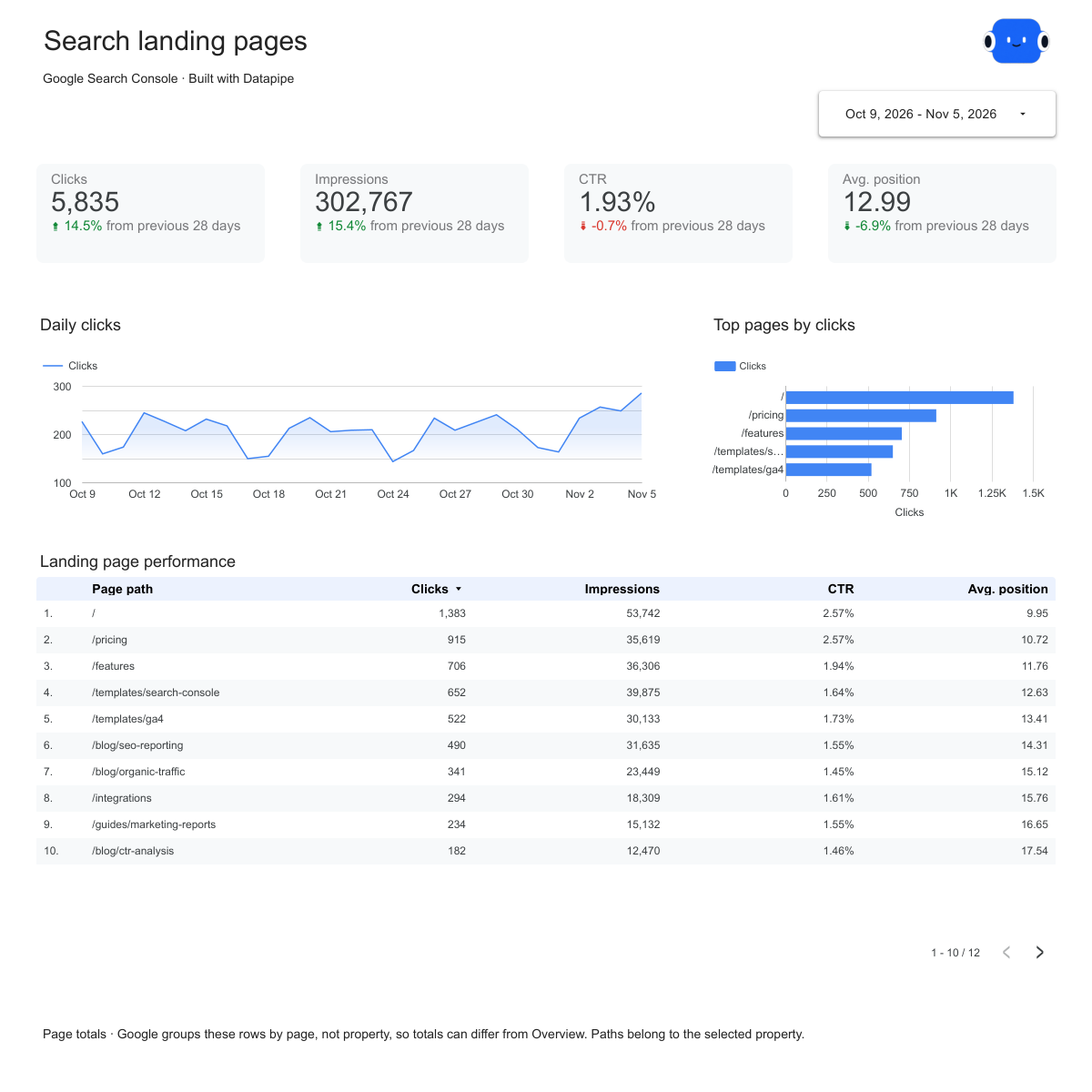
The Pages page, above, is where most fixes start: every page with its clicks, impressions, CTR and position for the period.
For a review-focused report, copy the SEO report template as well. It adds a Review priorities page that lists the pages ranking 4 to 20, most impressions first. You'll use it in Fix 2.
Step 3: Add GA4, with a Google organic landing page table
Open Reports, choose the GA4 dashboard and save your copy of the GA4 traffic acquisition report template. It gives the site-wide picture: the Acquisition page compares channels, source / medium and campaigns, and the Landing pages page shows engaged sessions and sessions with a key event for every entry page.
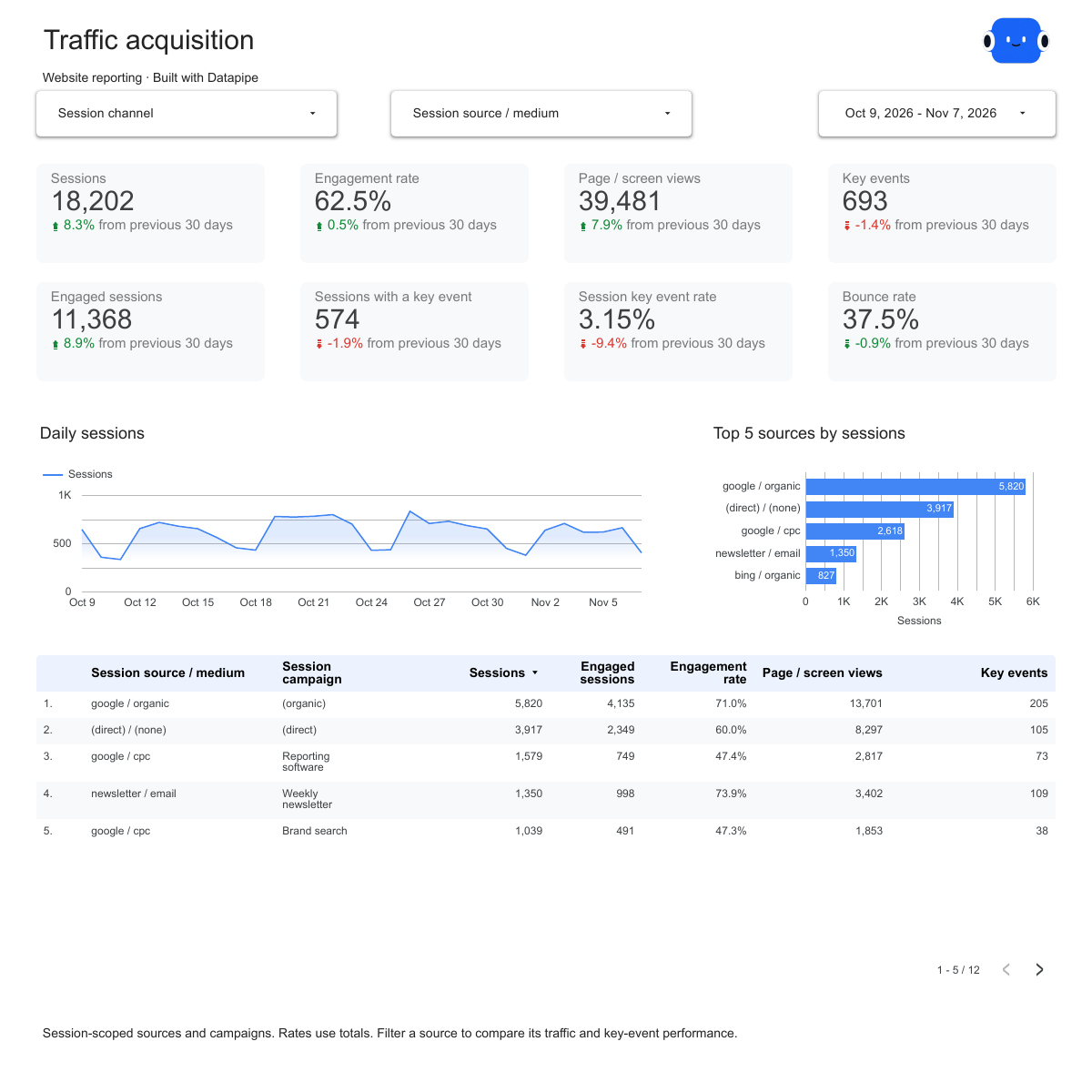
On the Acquisition page, above, find the google / organic row. That's Google search traffic as GA4 recorded it. GA4's Organic Search channel also includes Bing, DuckDuckGo and every other search engine, so it will never line up with Search Console on its own.
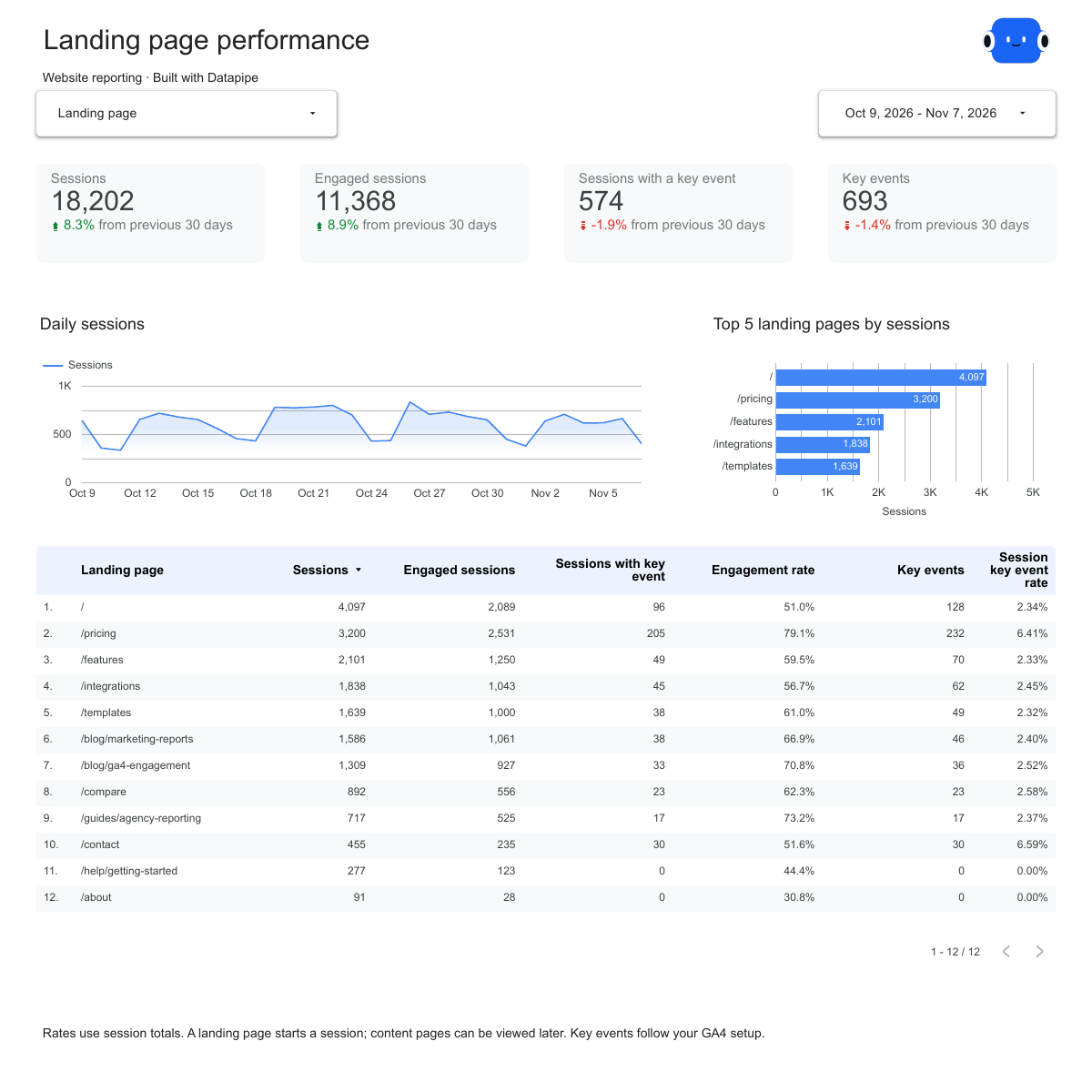
The Landing pages page, above, covers every channel, so it can't be filtered to Google alone. For the page-by-page comparison with Search Console, save one more GA4 table. In Reports, under Data tables by data source, pick Google Analytics and choose these columns: date, landing page plus query string, session source / medium, sessions, engaged sessions and key events. Set the same dates as your Search Console report and send it to a sheet. In that sheet, or in Data Studio, keep only the rows where session source / medium is google / organic. That's your Google organic landing page table, and the three fixes below use it.
Step 4: Send both reports behind one link
On the Search Console report's page in Datapipe, use Add another report and choose the GA4 report. The client gets both in one public link and one email, and the GA4 section reads the same dates as the Search Console report.
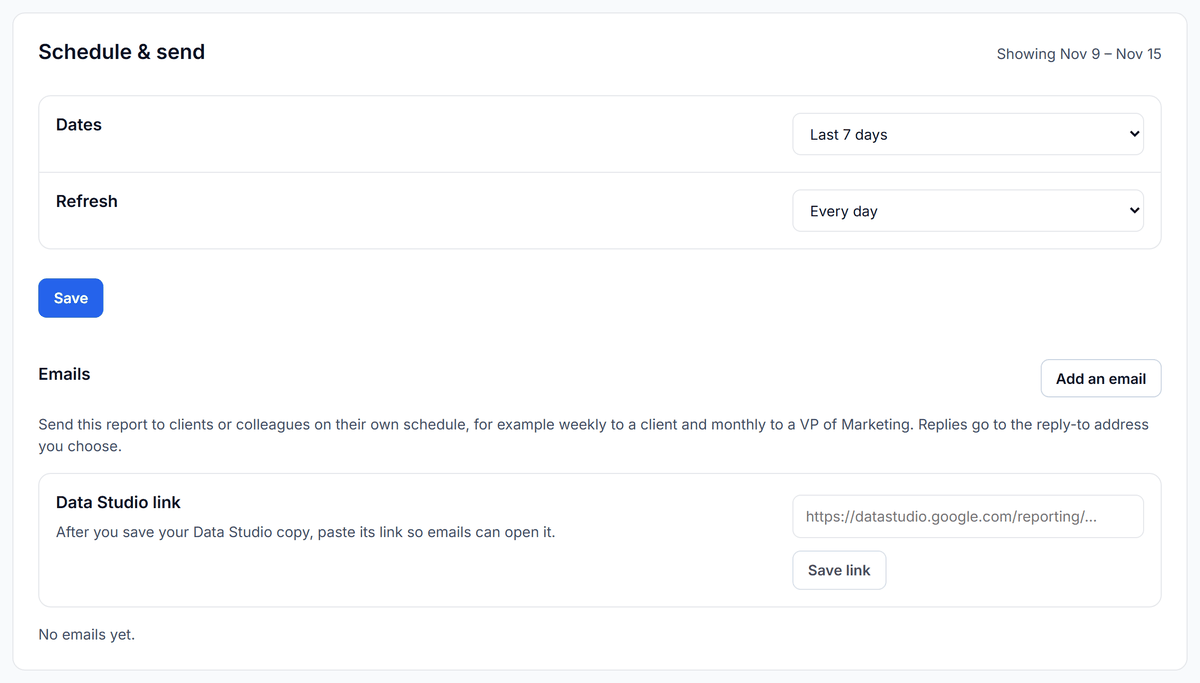
Then set the refresh in Schedule & send. Free and Starter refresh daily, Pro hourly, and Agency every 15 minutes on up to 50 data sources, as listed on the Datapipe pricing page. For a weekly routine, the use case to refresh a Search Console SEO report every Monday saves a Last week (Monday to Sunday) refresh that runs each Monday and reviews the new week with Claude.
How the two reports line up
The two reports meet on the landing page. Search Console reports a full URL; GA4's landing page is the path, sometimes with a query string. Strip both to the path, use the same trailing-slash rule, and compare the same complete dates.
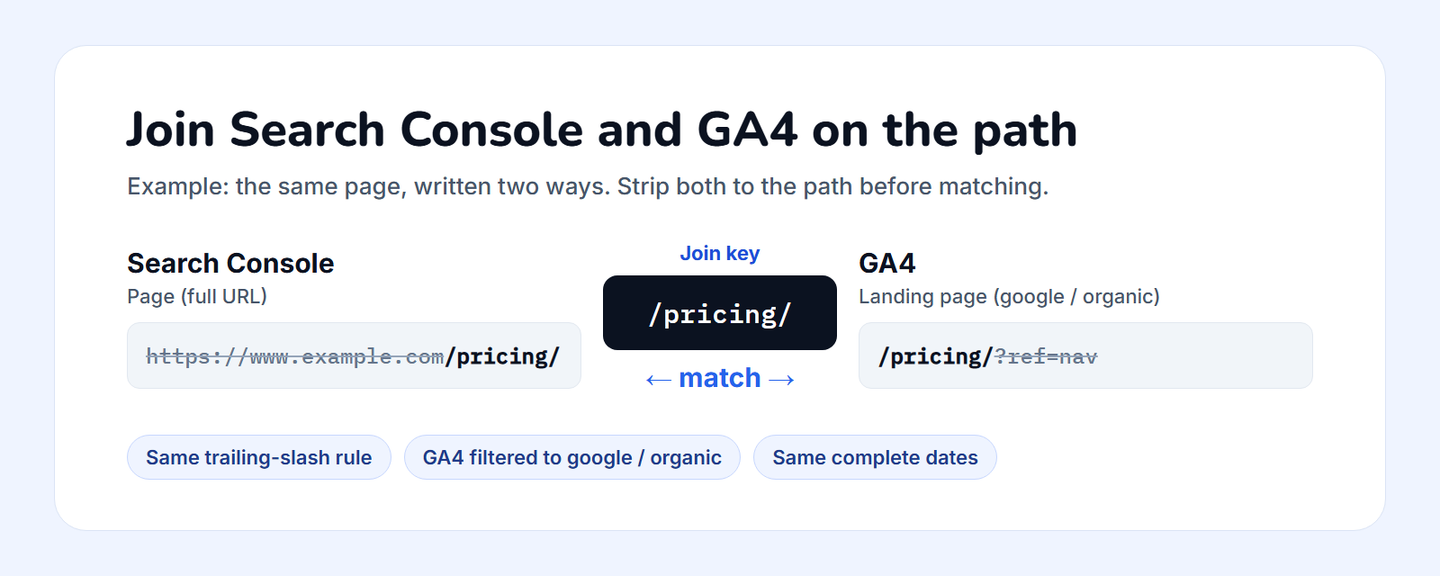
Pair metrics only when both describe the same page over the same dates, with GA4 filtered to google / organic.
| Search Console | GA4 (google / organic) | What the pair tells you |
|---|---|---|
| Clicks by page | Sessions by landing page | Whether Google's clicks arrive as recorded visits |
| Impressions and CTR by page | Engaged sessions by landing page | Whether a page earns the click and then holds attention |
| Average position by page | Key events by landing page | Which ranking pages bring leads or sales |
| Clicks trend by page | Key events trend by landing page | Content decay: traffic and outcomes falling together |
Never add clicks to sessions, never divide GA4 key events by Search Console clicks, and never average page positions without weighting them by impressions. Each of those mixes two tools' definitions and produces a number nobody can check.
The templates keep Search Console and GA4 in separate reports on purpose. To put both in one chart, follow the use case to build a Search Console + GA4 SEO dashboard with ChatGPT. It saves the two source reports, checks URL matching and duplicate rows before any blend, and keeps clicks and sessions in their own columns.
Fix 1: Find the pages losing search traffic
Content decay is a page whose clicks keep falling while the rest of the site holds steady. The report shows it as soon as both periods are complete.
- On the Pages page of your Search Console copy, compare the last 28 days with the previous 28. Use equal, complete periods and the same filters on both.
- Sort by the drop in clicks, not by percentage. A page that went from 10 clicks to 5 lost half its traffic and almost none of your business.
- For each page near the top, open the Queries page filtered to that page. Check whether impressions fell (demand or ranking), or impressions held and CTR fell (a competitor's snippet, a title that stopped matching the query).
- Check the same page in your Google organic landing page table. Falling clicks with steady key events can wait. Falling clicks and falling key events go to the top of the list.
- Rule out seasonality: compare with the same period last year if you have it.
For example, say /pricing lost 240 clicks period on period while impressions held, and its key events fell with it. That's a CTR problem on a page that sells. Rewrite the title and description to match the queries it ranks for, then check the same comparison 28 days later.
The use case on finding content decay with Google Search Console runs this comparison with an assistant, adds GA4 outcomes and the current page content, and sorts each page into keep, refresh, investigate consolidation or review. It doesn't delete, redirect or publish anything.
Fix 2: Push the pages ranking 4 to 20
Pages on the first two results pages but outside the top three get impressions without many clicks. A small ranking gain there brings more clicks than any new article.
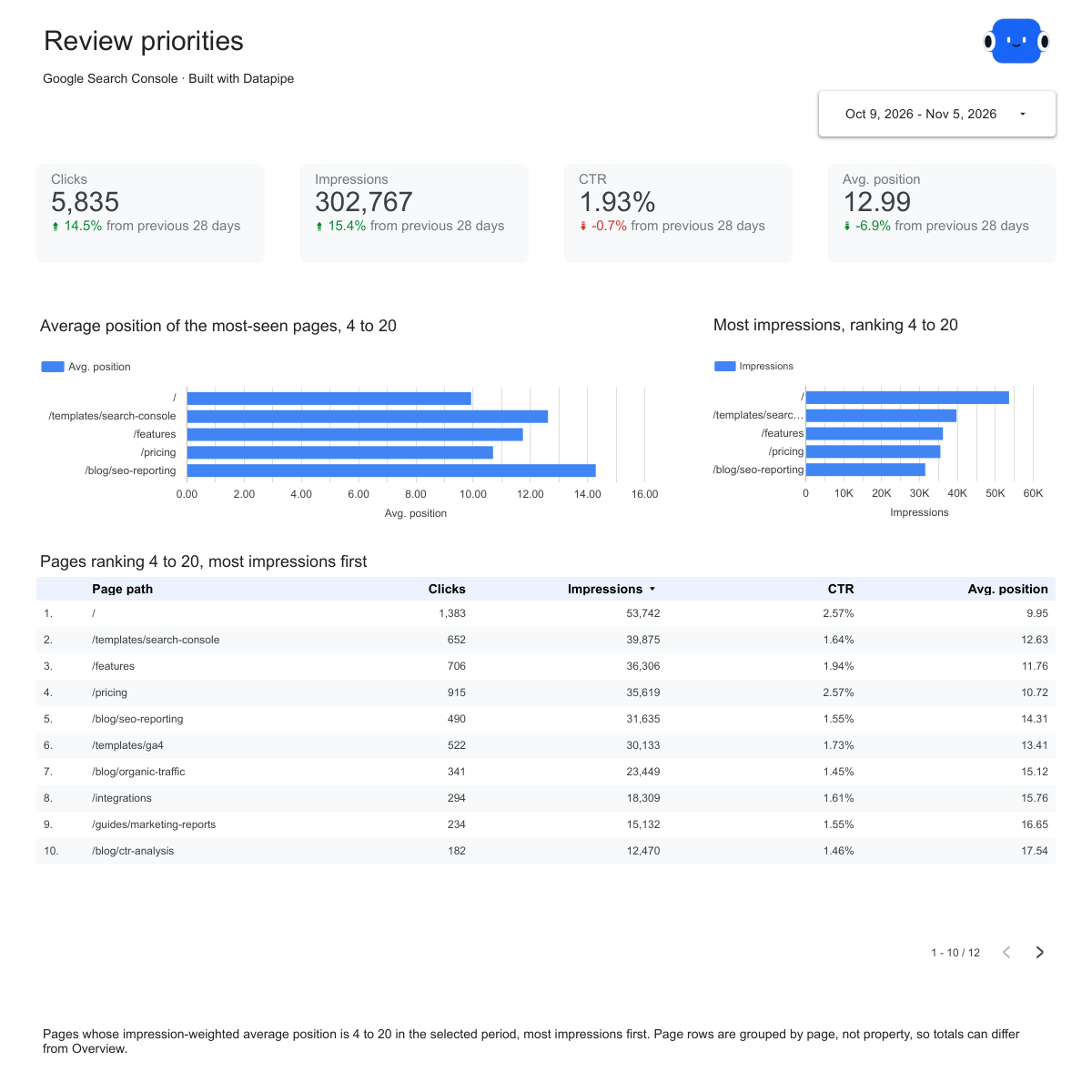
- Open the Review priorities page of your SEO report copy, shown above. It lists the pages whose average position is between 4 and 20, most impressions first.
- Take the top ten and look each one up in your Google organic landing page table. Keep the ones with key events; a page that ranks and converts is worth the work.
- For each, open its top queries in Search Console. Make sure the title, first heading and opening paragraph answer the main query directly.
- Add internal links from your strongest related pages, using the query as anchor text where it reads naturally.
- Recheck after 28 days on the same report.
Fix 3: Find the page where tracking broke
A steady gap between Search Console clicks and GA4 sessions is normal. A gap that suddenly widens on one page is a fault.
- Put the Pages page clicks for one landing page next to its sessions in your Google organic landing page table, week by week for the last eight weeks.
- Look for a week where clicks held but sessions dropped. Site-wide, that's a tag or consent-banner change. On one page, it's usually that page.
- Load the page on a phone. A slow page loses visitors before the GA4 tag fires.
- Check that the page still loads the GA4 tag, and that a recent redirect didn't send visitors to a URL without it.
Ask Claude or ChatGPT the same questions
You don't have to open the report for every question. Connect the project to Claude or ChatGPT once, and the assistant reads the same Search Console and GA4 accounts your templates use. It sees only the project you allow, and every read it makes is listed in Team & access, under Activity.
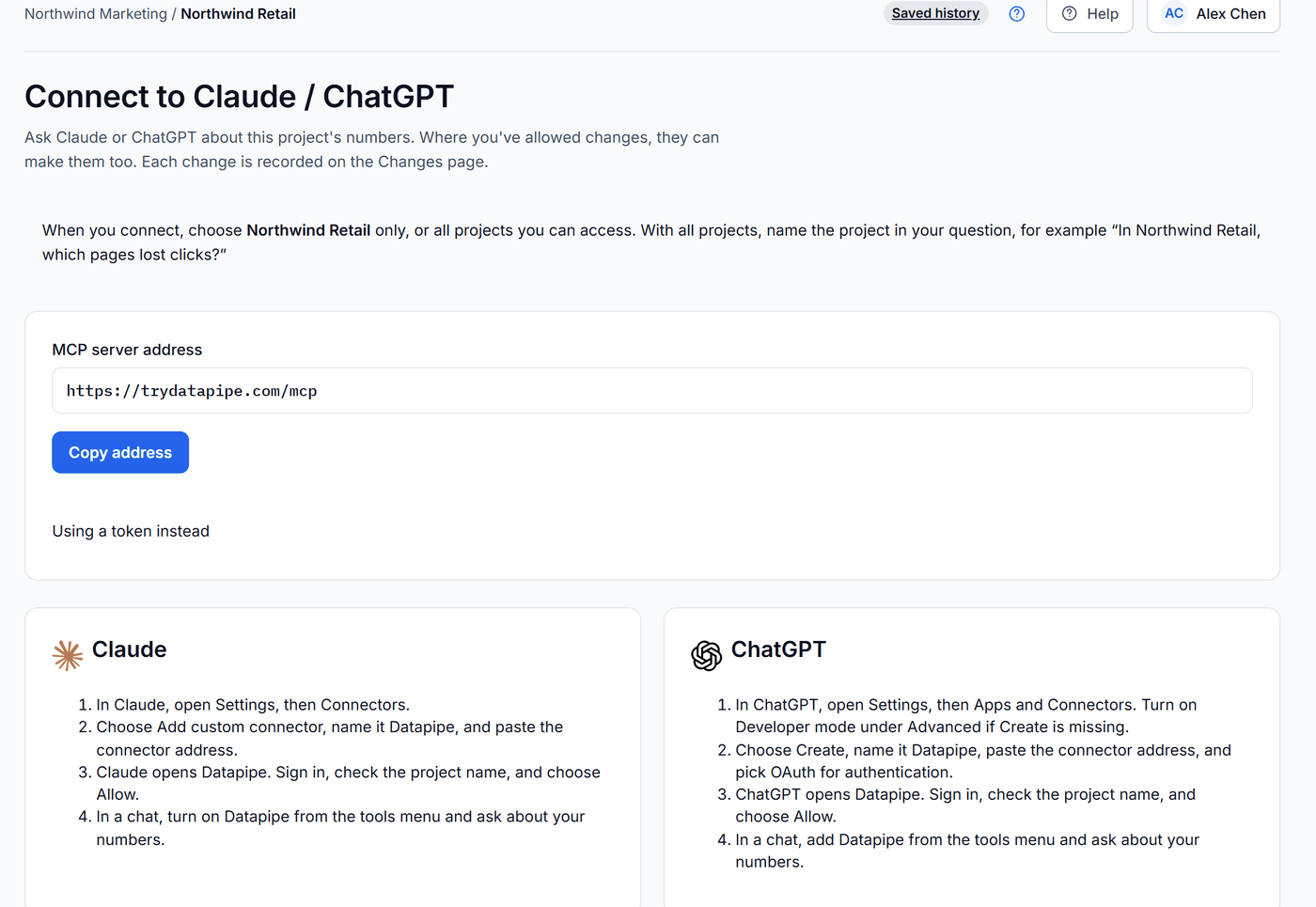
- In Datapipe, open Settings, then Claude / ChatGPT, and click Copy address.
- In Claude, open Customize, then Connectors, click + Add and choose Add custom connector, name it Datapipe and paste the address. In ChatGPT, open Settings, then Apps and Connectors, choose Create, name it Datapipe, paste the address and pick OAuth. No Create button? Turn on Developer mode under Advanced.
- Datapipe opens. Sign in, check the project name and choose Allow.
- Start a chat, turn on Datapipe from the tools menu and paste one of the prompts below. Swap in your project's name.
Find the pages losing clicks (Fix 1).
In [project name], read Search Console clicks and impressions by page for the last 28 complete days and the 28 days before. List the 20 pages that lost the most clicks, with both periods side by side. Then read GA4 sessions by landingPagePlusQueryString and sessionSourceMedium for the same dates, keep only google / organic, and add those sessions next to each page. Strip the domain and query string before matching. Don't change anything.
Find the pages ranking 4 to 20 (Fix 2).
In [project name], read Search Console clicks, impressions and average position by page and query for the last 28 complete days. List pages with an average position between 4 and 20, sorted by impressions, each with its three biggest queries.
Spot broken tracking (Fix 3).
In [project name], for the last 8 complete weeks, show weekly Search Console clicks and weekly GA4 google / organic sessions for the 10 pages with the most clicks. Flag any week where clicks stayed within 10% of the week before but sessions fell by more than 30%.
Ask for a chart and the assistant draws it from the rows it just read. When an answer is worth keeping, add it to the report, because the client sees the report every week and never sees your chat.
Why the numbers never match
Search Console almost always shows more Google clicks than GA4 shows Google organic sessions. Name the cause in the report and the client stops asking.
| Cause | What happens | What to do |
|---|---|---|
| Consent and blocked scripts | Visitors who decline analytics cookies click in Search Console but never become a GA4 session | Expect a steady shortfall |
| Visitors who leave early | A slow page loses people before the tag fires | Watch the gap page by page |
| Other search engines | GA4's Organic Search includes Bing and others | Filter GA4 to google / organic |
| Clicks are not sessions | One person can click twice in one visit | Never present them as the same metric |
| Time zones and late data | Search Console uses Pacific time and final data arrives days late | Compare complete dates that ended a few days ago |
| Hidden queries and top rows | Google withholds rare queries and returns the top rows | Use property totals for headline numbers |
Google explains the last two in its deep dive into Search Console performance data.
Troubleshooting
The Search Console property doesn't appear. The Google account you signed in with can't see it. Open the property in Search Console, go to Settings, then Users and permissions, and ask the owner to add your Google email. Back in Datapipe, click Refresh accounts. A Domain property is listed as sc-domain:example.com.
The GA4 property doesn't appear. In Google Analytics, open Admin, then Property access management, and ask an administrator to give your Google email at least Viewer access. Then click Refresh accounts, or sign in with a different Google account.
The last few days are missing. The template ends three days before today on purpose, so Google's late data doesn't show as a drop. Fresh data can be included in a custom report, but it can still change.
The Queries total is smaller than the Overview total. Google omits rare queries for privacy. Use the Overview total as the headline number.
A page filter changed the site totals. Search Console applies filters before it groups rows, so a page filter changes totals even when page isn't a column. That's expected.
GA4 numbers differ from the GA4 interface. Check that both use the same property, dates, time zone and channel filter. Consent modelling, data thresholds and filters can also change totals.
A blended chart comes back empty. The URLs don't match. Strip both sides to the path and use one trailing-slash rule before you blend.
Which number should the client see?
Use Search Console for how often Google showed the site and sent people to it. Use GA4 for what those people did. Put each tool's name beside its number.
Here's the stance worth defending: never label GA4's Organic Search sessions as "Google traffic" on a cover page. It mixes in other search engines and misses visitors who declined cookies, and the first client who opens Search Console will see a different number and stop trusting the rest of the report. A short line under the chart prevents that:
Search Console counts clicks on Google. GA4 counts the visits it could record. Expect GA4 to be lower.
Frequently asked questions
Why does Search Console show more clicks than GA4 shows sessions?
Search Console counts a click on Google's results page before the visitor reaches your site. GA4 only records a session when its tag runs in the visitor's browser. Visitors who decline analytics cookies, leave before the page loads or click twice in one visit all widen the gap, and GA4's Organic Search channel also includes other search engines.
A steady gap is normal. A gap that suddenly widens on one page usually means that page got slower or lost its tag.
Should I use GA4 or Search Console for SEO reporting?
Both, for different questions. Use Search Console for impressions, clicks, CTR and average position on Google. Use GA4, filtered to google / organic, for what those visitors did on the site: engaged sessions and key events by landing page. Label each number with the tool that produced it.
How do I put Search Console and GA4 in one report?
In Datapipe, add both to the same project: sign in with Google, choose the verified Search Console property, then choose the GA4 property for the same site. Copy the Search Console and GA4 report templates from Reports, then use Add another report on the Search Console report so the client gets both behind one link with the same dates.
Can I filter GA4 to Google organic traffic only?
Yes. Use session source / medium equal to google / organic rather than the Organic Search channel group, which also includes Bing and other search engines. In the GA4 report template, the Acquisition page shows the google / organic row. For a page-by-page view, save a GA4 table with landing page and session source / medium as columns and keep only the google / organic rows.
Why is my Search Console query total smaller than the overview total?
Google leaves rare queries out of query-level data to protect searchers' privacy, and it returns the top rows for each request rather than a full export. The property totals on the Overview page still include them, so use the Overview total as the headline number.
Why are the last few days missing from my Search Console report?
Google's final Search Console data arrives a few days late, so the report template ends three days before today. That keeps recent days from looking like a drop. Fresh data can be included in a custom report, but it can still change.
Put your marketing numbers on autopilot
Datapipe connects your data sources and keeps your reports refreshed on a schedule.
Start free