How to connect Search Console and GA4 to Claude
Add Search Console and GA4 to a Datapipe project, connect it to Claude as a custom connector, and ask live SEO questions with eight copy-ready prompts.

To connect Search Console and GA4 to Claude, add both to a Datapipe project, copy Datapipe's connector address (https://trydatapipe.com/mcp) and add it in Claude as a custom connector. Sign in once, allow the project, and Claude can read live clicks, queries, sessions and key events from both in any chat.
This guide walks through the setup on each side, shows what Claude can and can't read, and gives you eight prompts to copy for the SEO questions you answer every week.
What you'll need before you start
You need a Google account with access to the Search Console property and the GA4 property, a Claude account, and a Datapipe account.
On Datapipe's Free plan you get 3 data sources with a daily refresh, enough for one site's Search Console and GA4. On Claude, custom connectors work on Free, Pro, Max, Team and Enterprise plans, and Claude's guide to custom connectors using remote MCP says Free users are limited to one custom connector. One is all this needs: Datapipe is a single connector for every data source in the project.
On a Claude Team or Enterprise plan, an owner adds the connector for the organization first. Members then connect to it themselves.
How the connection works
Claude never gets your Google login. Datapipe holds the connection to Google, and Claude asks Datapipe for data through the connector. You choose which project Claude can see when you sign in.
| Who holds it | What it means for you | |
|---|---|---|
| Google access | Datapipe, through Sign in with Google | You connect Search Console and GA4 once, not per chat |
| Project access | Claude, after you choose Allow | Claude sees the project you picked, or all projects if you chose that |
| The numbers | Read live from Google when Claude asks | Answers use current data, not a copy from last week |
| Changes | Off unless you allow them in Datapipe | Claude can only read until someone with rights turns a change on |
Step 1: Add Search Console to a Datapipe project
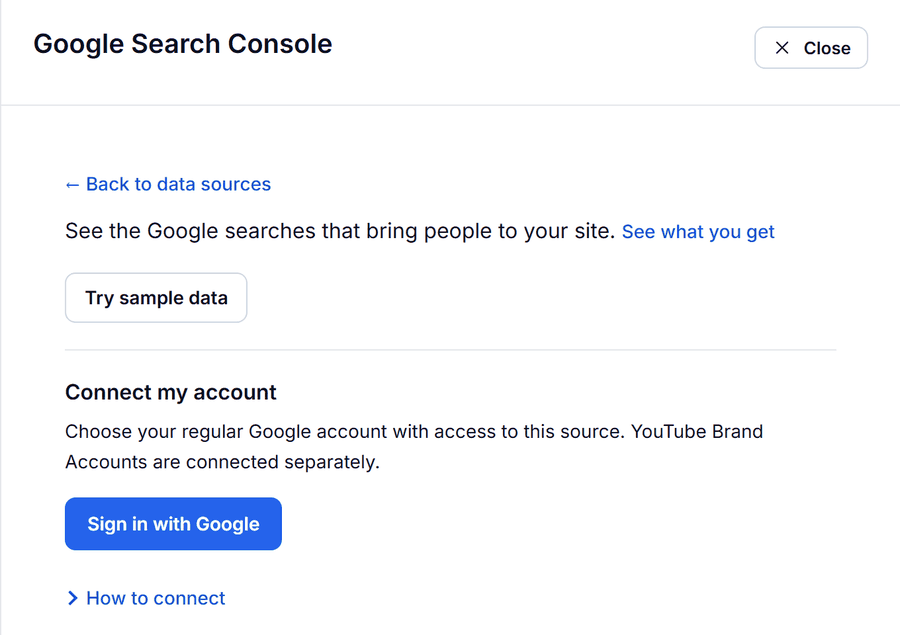
- In Datapipe, open Data sources, choose Add data source and pick the Google Search Console data source.
- Click Sign in with Google with an account that can see the property, then choose the property.
Step 2: Add Google Analytics to the same project
- Choose Add data source again and pick the Google Analytics data source.
- Click Sign in with Google and choose the GA4 property for the same site.
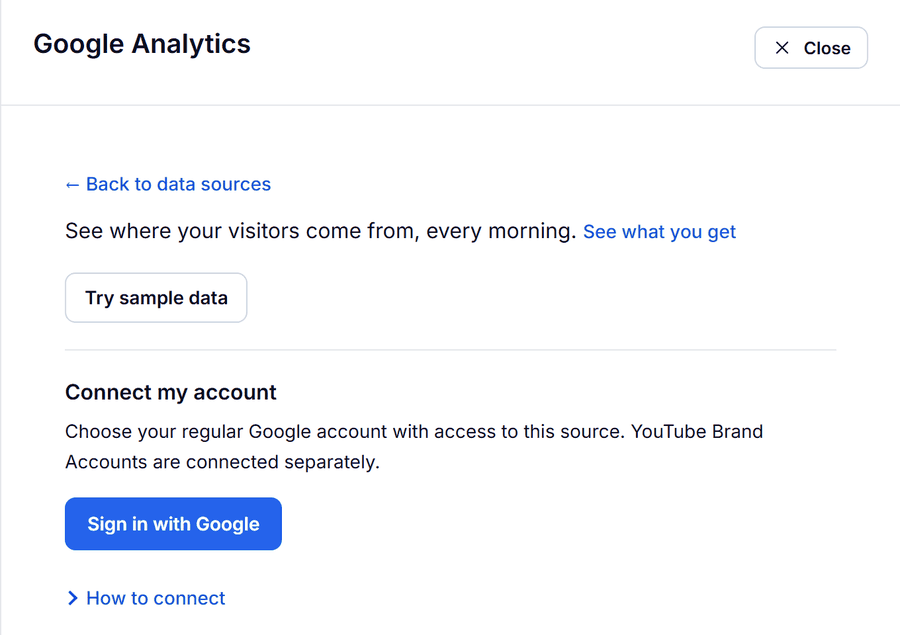
Both have to be in one project. Claude reads per project, so a question that needs search and site data together only works when both sit side by side.
Step 3: Copy the connector address
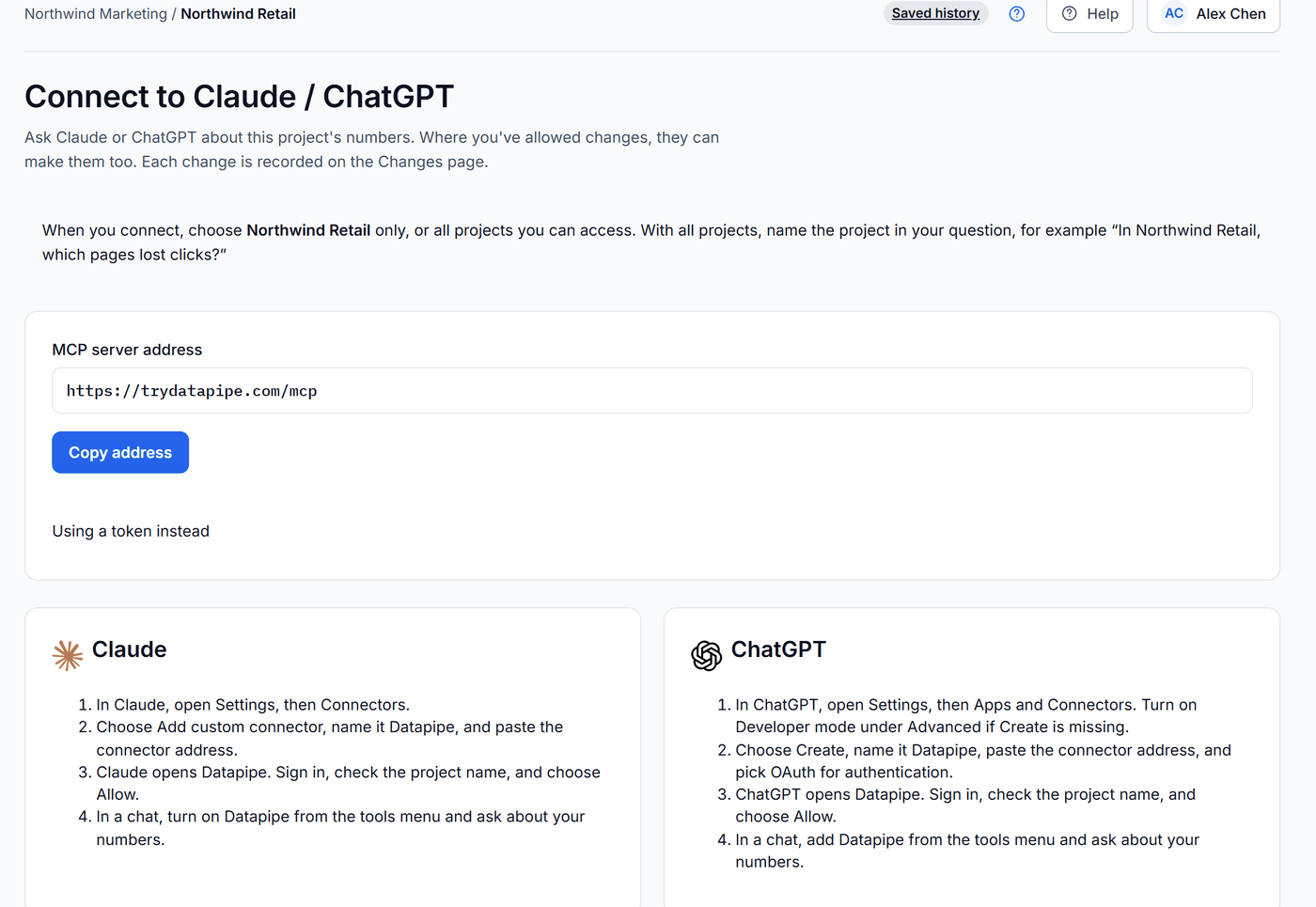
In Datapipe, open Settings, then Claude / ChatGPT. The page shows the connector address, https://trydatapipe.com/mcp. Click Copy address.
Step 4: Add Datapipe as a custom connector in Claude
- In Claude, open Customize, then Connectors.
- Click + Add, then Add custom connector.
- Name it Datapipe, paste the address and add it.
On Team and Enterprise, the owner does this under Organization settings, then Connectors. Members then open Customize, then Connectors, find Datapipe and click Connect.
Step 5: Sign in and choose the project
Claude opens Datapipe. Sign in, check the project name and choose Allow. You can allow one project, or all the projects you can access. With all projects, name the project in every question, for example "In Northwind Retail, which pages lost clicks?"
Step 6: Turn Datapipe on in a chat
Start a chat, click + at the bottom left, choose Connectors and switch Datapipe on. Ask your first question.
Check what Claude can see.
In [project name], list the data sources you can read and the date range each one has data for. Don't change anything.
If Claude lists Search Console and Google Analytics, the setup works.
What Claude can read from each source
Claude reads the same fields Datapipe uses in reports. The useful ones for SEO work are these.
| Source | Fields Claude can read | Good for |
|---|---|---|
| Search Console | clicks, impressions, ctr, position by date, query, page, country, device and search appearance; sitemaps; URL inspection | Which searches and pages gained or lost, and whether a page is indexed |
| Google Analytics | sessions, engagedSessions, engagementRate, keyEvents, totalRevenue by landingPage, sessionDefaultChannelGroup, sessionSourceMedium, date | What search visitors did after they landed |
Two limits are worth knowing before you trust an answer. Search Console leaves anonymized searches out of query rows, so query totals come in lower than the property total. And Google's numbers for the last two or three days aren't final, so ask for date ranges that end at least three days ago.
There's also a trust rule built into Datapipe: if a read fails, Claude gets an error, not made-up or sample numbers. If Claude says it couldn't read something, that's the real state of the connection.
Eight prompts for weekly SEO work
Paste these as they are and swap the bracketed parts. Each one ends with "Don't change anything" so Claude only reads.
Weekly check-in.
In [project name], compare Search Console clicks, impressions, ctr and position for the last 7 complete days against the 7 days before, ending three days ago. Then compare Google Analytics sessions, engagedSessions and keyEvents where sessionDefaultChannelGroup is Organic Search for the same days. Summarize what changed in three sentences. Don't change anything.
Pages that lost clicks.
In [project name], list the 10 pages with the biggest drop in Search Console clicks over the last 28 complete days against the 28 days before. For each, show clicks before and after, impressions before and after, and position before and after, and say whether the drop came from fewer impressions or a lower ctr. Don't change anything.
Searches close to page one.
In [project name], list queries from the last 28 complete days with an average position between 4 and 20 and at least 200 impressions, most impressions first, with clicks, ctr and the page that ranks. Don't change anything.
Search clicks against what happened on the page.
In [project name], for the last 28 complete days, put each page's Search Console clicks next to Google Analytics sessions, engagedSessions and keyEvents for the same landingPage where sessionDefaultChannelGroup is Organic Search. Flag pages with many clicks but few key events. Explain that the two sources count differently and won't match exactly. Don't change anything.
Brand and non-brand.
In [project name], split Search Console clicks for the last 28 complete days into brand and non-brand, where brand queries contain [brand terms]. Show both totals and the share of query clicks, and the five biggest non-brand queries. Don't change anything.
Is this page indexed?
In [project name], run a Search Console URL inspection for [full page URL] and tell me the index verdict, the coverage state, the last crawl time and whether Google's chosen canonical matches the page. Don't change anything.
Device and country check.
In [project name], compare Search Console clicks and ctr by device for the last 28 complete days against the 28 days before, then list the five countries with the biggest change in clicks. Don't change anything.
Client summary.
Using only the numbers from this chat, write a short SEO update for the client: what changed, why, and the three pages we'll work on next. Keep numbers exact and don't add any you haven't shown me. Don't change anything.
For a dashboard you design with an assistant, the use case to build a Search Console and GA4 SEO dashboard walks through it step by step.
A worked example
For example, say you ask the "pages that lost clicks" prompt on a Monday. Claude reads Search Console for two 28-day windows and replies with a table. The top row reads: /pricing, 915 clicks before and 610 after, impressions steady at about 35,600, position 10.7 before and 11.2 after, ctr down from 2.57% to 1.71%.
Impressions held and position barely moved, so the page didn't lose visibility. Fewer people clicked. That points at the result itself: a title or description that stopped matching what people search for, or a new rich result above it. You ask Claude to inspect the URL with the sixth prompt, see that Google indexed it with your canonical, and you know the fix is the title and description, not the page.
The whole exchange takes two prompts and none of it needs a spreadsheet.
Can Claude change anything in Search Console or GA4?
Only if you allow it. Changes start off for every data source in Datapipe. The owner, an admin or a project manager can allow specific changes, such as submitting one sitemap to Search Console or updating approved annotation text in Google Analytics. Claude then works within exactly those changes, can't widen its own access, and every change is recorded in Datapipe's Changes history. The pages for Search Console in Claude and Google Analytics in Claude list what each one can change.
For reporting, leave changes off. The prompts above only read.
Troubleshooting the Claude connection
If Datapipe doesn't appear in a chat, click + at the bottom left, open Connectors and switch it on. Connectors are turned on per conversation.
If you can't add a second custom connector, you're on Claude's Free plan, which allows one. Remove the other connector or use Datapipe for all your data sources through one connector.
If you're on a Team plan and see no Add option, only owners add custom connectors there. Ask an owner to add Datapipe under Organization settings, then Connectors.
If Claude says more than one account is connected, the project has two Search Console properties or two GA4 properties. Name the one you mean in the question, or keep one per project.
If Claude says a source needs reconnecting, open Data sources in Datapipe and sign in with Google again for that source. Claude picks it up on the next question.
If Claude's numbers differ from the Search Console screen, check the dates and time zone. Search Console dates are in Pacific time, the last few days aren't final yet, and query rows leave out anonymized searches.
If Claude answers about the wrong client, you allowed all projects. Name the project at the start of every question.
Frequently asked questions
Can Claude read Google Search Console data?
Yes, through a custom connector. Add Search Console to a Datapipe project, add Datapipe's connector address in Claude, sign in and allow the project. Claude can then read clicks, impressions, CTR and position by query, page, country and device, plus sitemaps and URL inspection results.
Do I need a paid Claude plan to connect Search Console and GA4?
No. Claude allows custom connectors on its Free plan, limited to one custom connector. Datapipe is one connector for every data source in the project, so Search Console and GA4 both come through it.
Does Claude get my Google login?
No. Datapipe holds the connection to Google. Claude asks Datapipe for data through the connector, and only for the project you allowed.
Can Claude change my Search Console or GA4 settings?
Only if someone allows it in Datapipe. Changes are off by default. When allowed, Claude can do only the specific change permitted, such as submitting one sitemap, and every change is recorded in Datapipe's Changes history.
Why are Claude's numbers different from the Search Console screen?
Check the date range and time zone first. Search Console dates are in Pacific time, the last two or three days aren't final, and query rows leave out anonymized searches, so query totals come in lower than the property total.
Does it work with ChatGPT too?
Yes. The same connector address works in ChatGPT: open Settings, then Apps and Connectors, choose Create, paste the address and pick OAuth. The prompts in this guide work in both.
Put your marketing numbers on autopilot
Datapipe connects your data sources and keeps your reports refreshed on a schedule.
Start free