 Stripe · Free Data Studio template
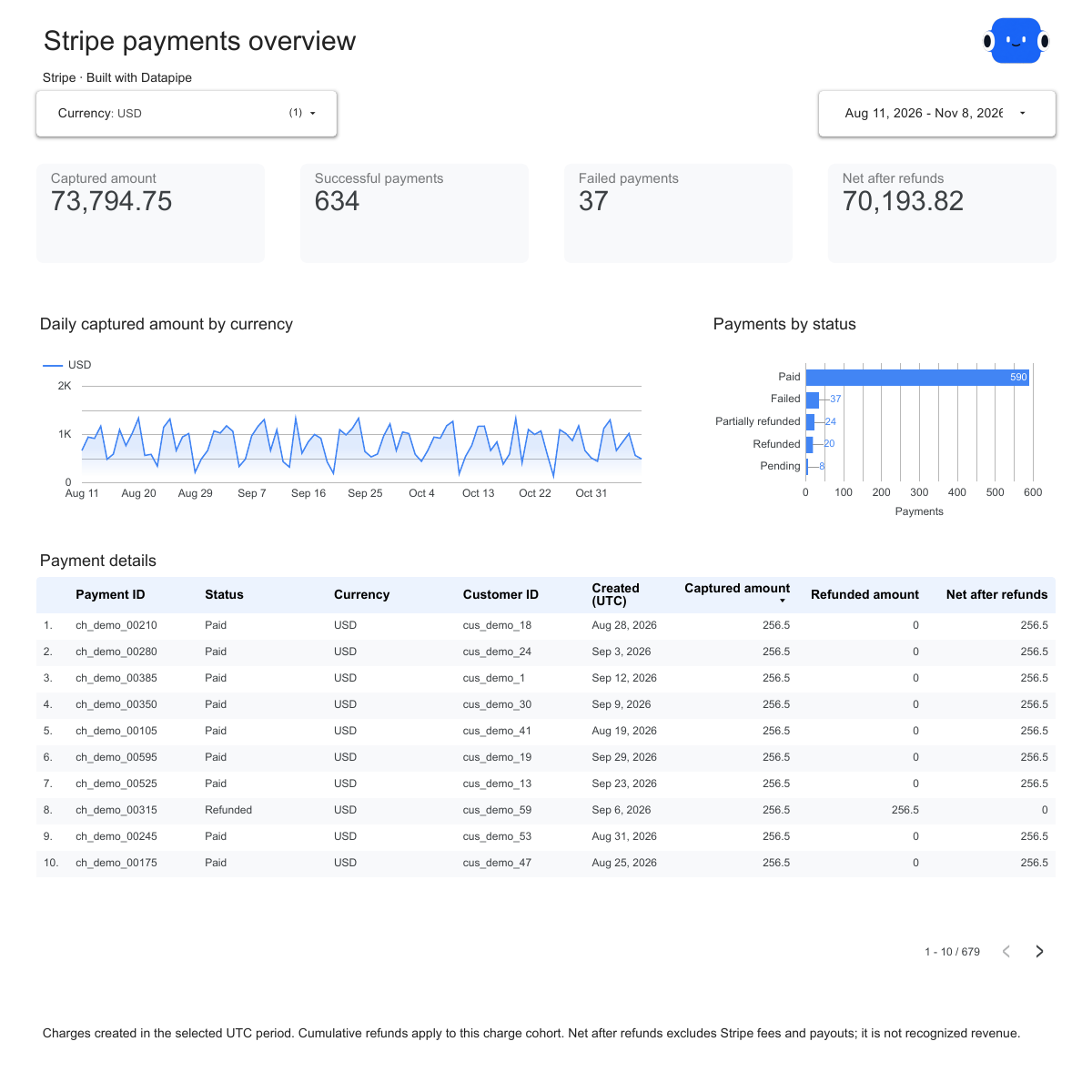
Stripe report template
Make this report yours



What can you do with this data?
Explore all use cases →Build a Stripe payments dashboard with ChatGPT in Looker Studio.
Review charge activity, amounts, status and currencies with ChatGPT. Export the selected Stripe report and build custom charts that keep payments distinct from payouts and profit.
See this use case →FinanceIs traffic growth keeping pace with our payment target?
Compare GA4 traffic, Stripe paid-payment amounts and your targets in Google Sheets without turning traffic into guessed revenue attribution.
See this use case →EcommerceBuild my Shopify sales dashboard with ChatGPT in Looker Studio.
Use ChatGPT to define an orders-and-sales view, export Shopify data to Sheets, and build custom Looker Studio charts for the store review.
See this use case →EcommerceAsk Claude which Shopify products need a stock check before our promotion.
Turn current Shopify product inventory into a review Sheet with Claude. Check variants and locations before choosing products for a promotion.
See this use case →More reports for your next review
Browse report templates → Report plan
Shopify sales report template
Prepare a daily sales and order review, then add refund detail where the business question requires it.
Explore report plan → Report plan
WooCommerce sales and refund report template
Prepare a store-summary review with native sales, orders, tax, shipping and refund measures.
Explore report plan → Report plan
Klaviyo campaign and flow report template
Prepare separate campaign and flow reviews using native recipient, delivery, engagement and conversion reporting.
Explore report plan →