Datapipe
Start free
← All report templates

Nightwatch · Free Data Studio template

Nightwatch rank tracking report template
Know where you rank. See what moved.

Average position and first-page keywords by day, every tracked keyword with its change, and the keywords that moved most. One editable report filled from Nightwatch.

A Google account is needed to save a copy.

Explore the report

Choose a page to see its charts and metrics.

Choose a report page to preview
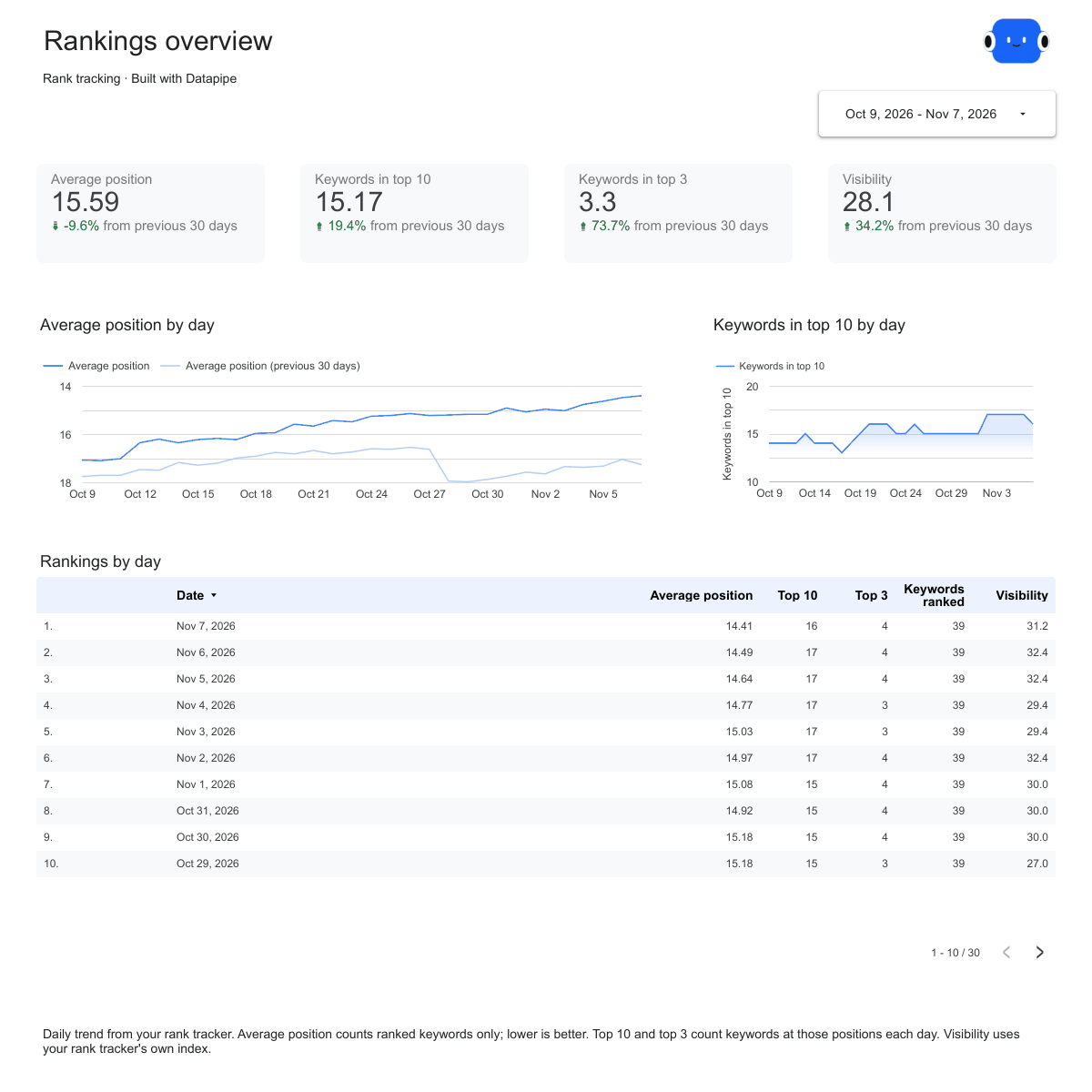
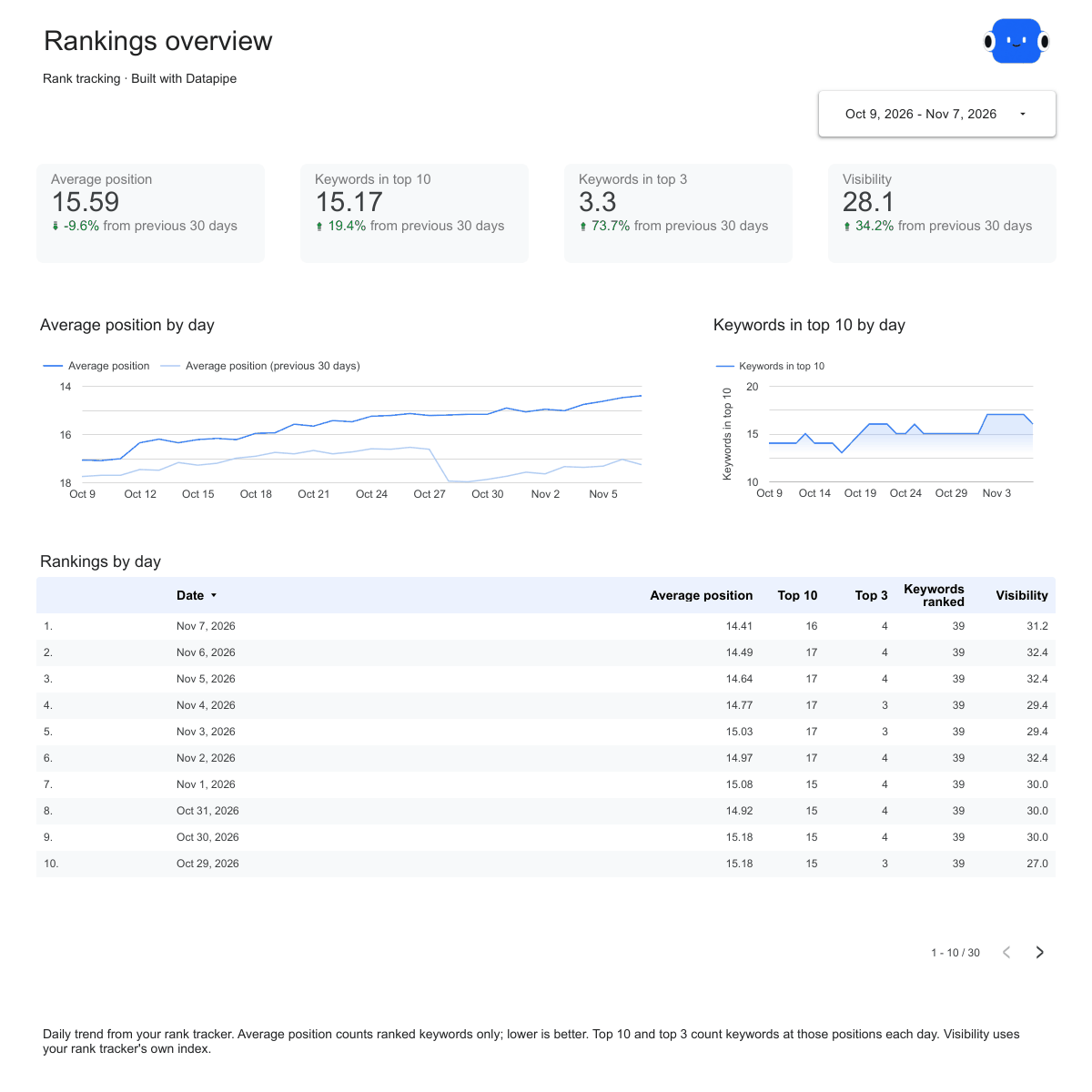
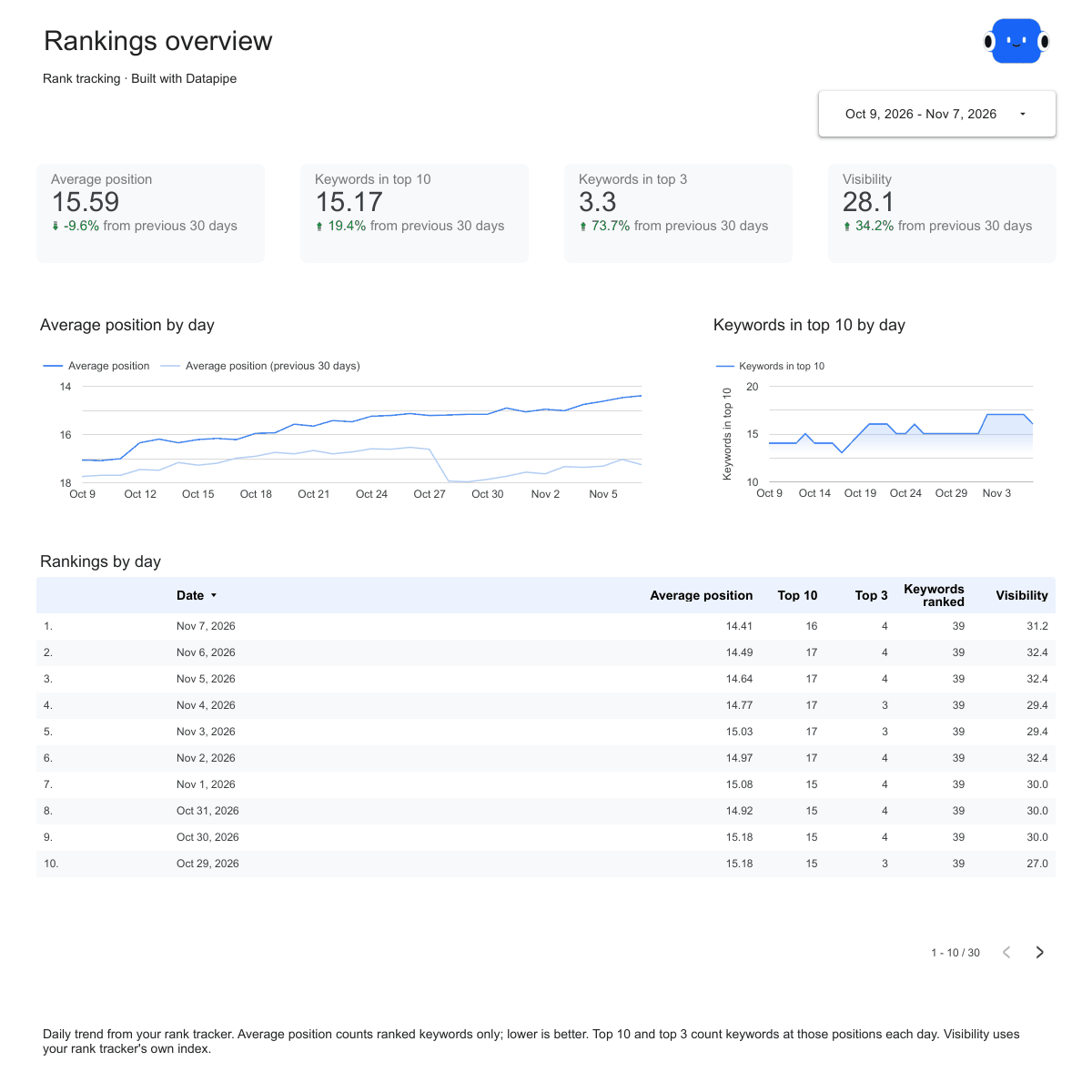
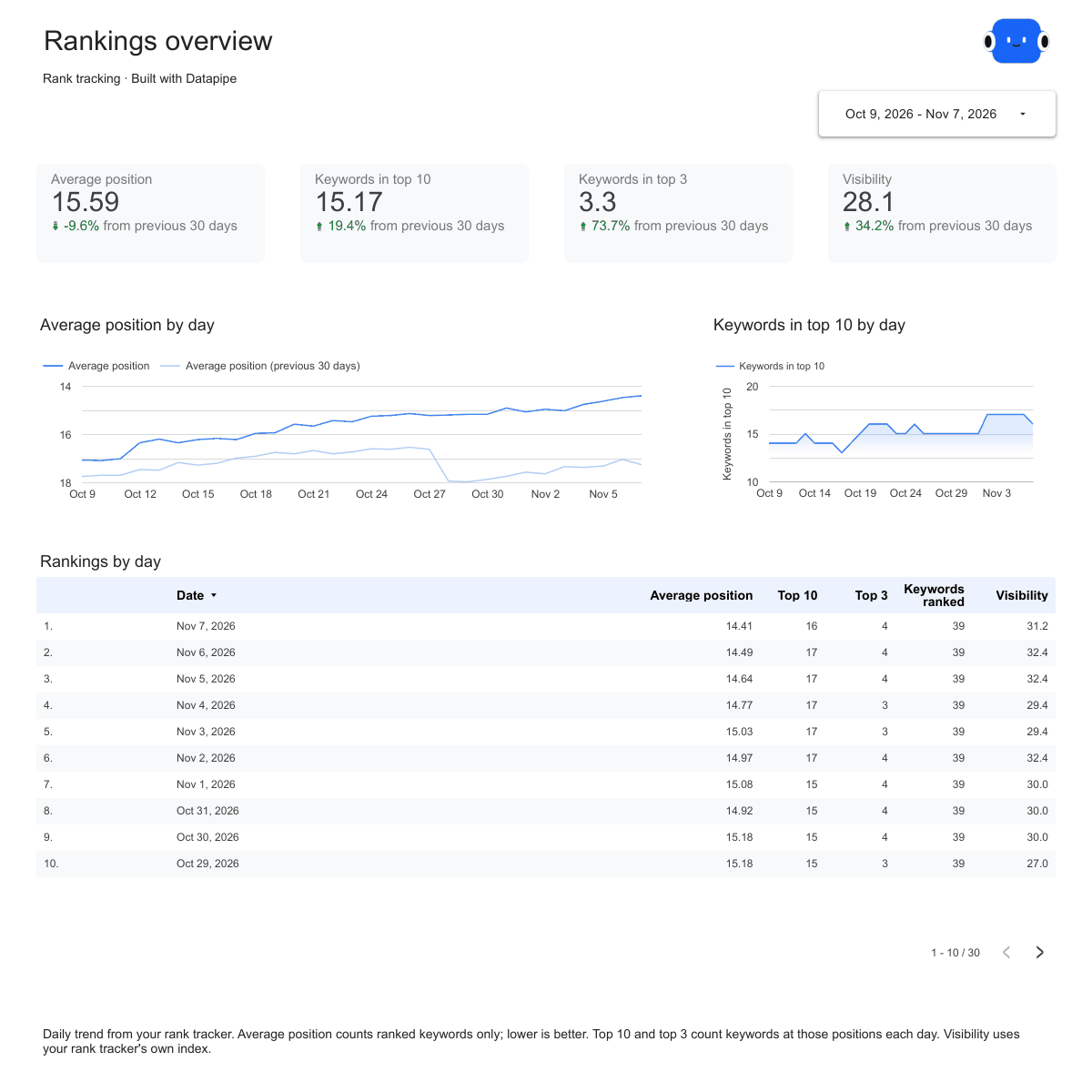
Nightwatch overview report page.
See how rankings moved. Open this page ↗
Nightwatch keywords report page.
Check every tracked keyword. Open this page ↗
Nightwatch movers report page.
Find what gained and what slipped. Open this page ↗
Nightwatch start here report page.
Your reporting guide. Open this page ↗

Open interactive report ↗ · Download PDF · CSV

Make this report yours

  1. Preview the report

    Explore the pages, charts and filters.

  2. Save a free copy

    Add your logo and adjust the layout for your team or clients.

  3. Connect your account

    Choose the account you want this dashboard to report on.

Keep your dashboard up to date

Connect Nightwatch. Datapipe updates the Google Sheet behind your dashboard on your schedule.

NightwatchSelected account
DatapipePrepare & refresh
Google SheetsPrivate report data
Data StudioYour dashboard

Setup, pricing and metrics

What does this Nightwatch rank tracking report include?

Four pages: Start here, Overview, Keywords and Movers. Overview shows average position, keywords in the top 10 and top 3, and visibility by day against the previous period. Keywords lists every tracked keyword with its position, previous check, change, best position and monthly searches. Movers ranks the keywords that gained or lost the most places.

How do I use this template with my Nightwatch account?

Add Nightwatch as a data source in Datapipe with your Nightwatch API token, and choose a tracked URL if your account has more than one. Then create this dashboard and authorize Google Sheets separately. Datapipe prepares two worksheets, Keywords and Daily trend, and a copy link that replaces both report sources. Save your private Data Studio report; scheduled exports update the same workbook.

Which numbers come from Nightwatch?

Nightwatch’s latest, previous and best position for each keyword, with the ranking URL and search volume. The daily trend uses Nightwatch’s average position and search visibility index for all tracked keywords. Daily top 10 and top 3 counts stay empty.

How is average position calculated?

Only keywords that rank within the tracked depth count. Keywords that are not ranked are left out rather than counted as a high number, so they don’t make the average look worse. Lower is better.

What does Change mean?

Change is the previous position minus the latest position. A keyword that moved from 8 to 5 shows +3. Keywords that are new, lost or have no earlier check show no change value and appear in the movement chart instead.

How much history does the dashboard read?

Up to the last 90 days. The dashboard opens on the last 28 days, ending yesterday, compared with the 28 days before that. Keywords and Movers show each keyword’s latest check.

Is this the same as average position in Google Search Console?

No. A rank tracker checks the keywords you chose in a set market and records the position it finds. Search Console averages the position of your site across all searches where it appeared. The two answer different questions, so the numbers differ.

Is the report template free?

The template, editable Data Studio copy, PDF and CSV are free. You need a Google account to save a copy. Datapipe plans apply when you connect and refresh your own data.

Make it your next report.